How to Use Shrewd LMS as Teacher
Step-by-step instructions for installing the app, setting up courses, adding and managing activities, and accessing reports — all within Microsoft Teams.
Important Note: Shrewd LMS works natively within Microsoft Teams and does not require Azure Active Directory (Azure AD) configuration. We strongly recommend not using Azure AD groups or custom restrictions to control access, as this may cause unexpected access issues. Manage access using Microsoft Teams settings and policies only.
Adding Sections and Activities
Adding Sections and Activities
Inside Shrewd LMS, you can build learning content by adding Sections and Activities. Activities supported: Text, Documents, BLC, Video, Audio, Link, Image, SCORM, Quiz, Panorama Interactive, Interactive Image, and Assignment.
Managing Sections
1. Adding and Editing a Section
- Click Add Section to create a new content section.
- Give the section a descriptive title.
- Add activities inside the section.
- Drag to reorder sections as needed.
Activity Types
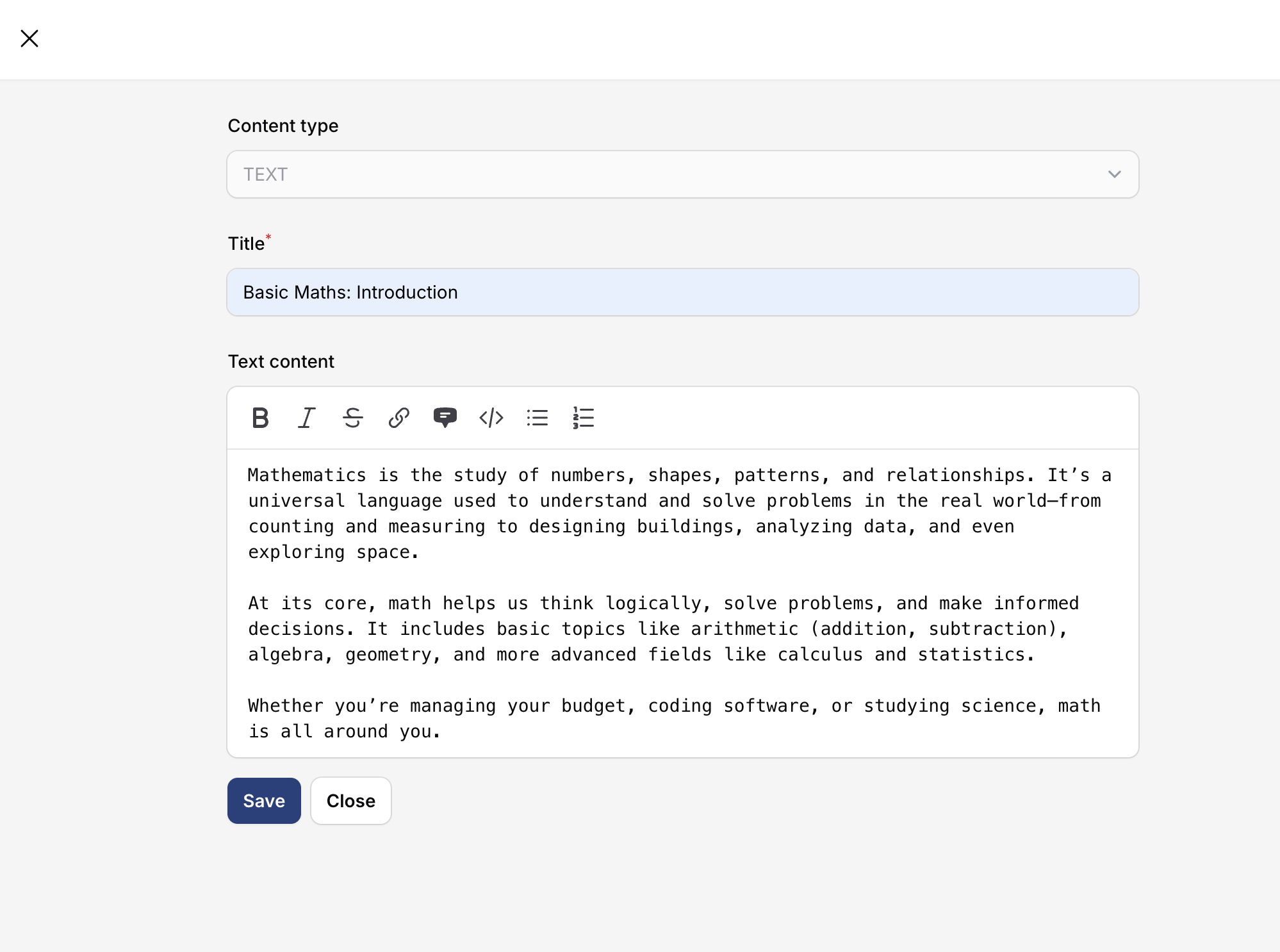
1. Text Activity
- Enter the title of your activity.
- Within the text content area, you can type and format text using the built-in editor. Available formatting options include bold, italic, and strikethrough, as well as adding links, blockquotes, code blocks, bullet lists, and numbered lists.
- Click Save to save changes.
2. Document Activity
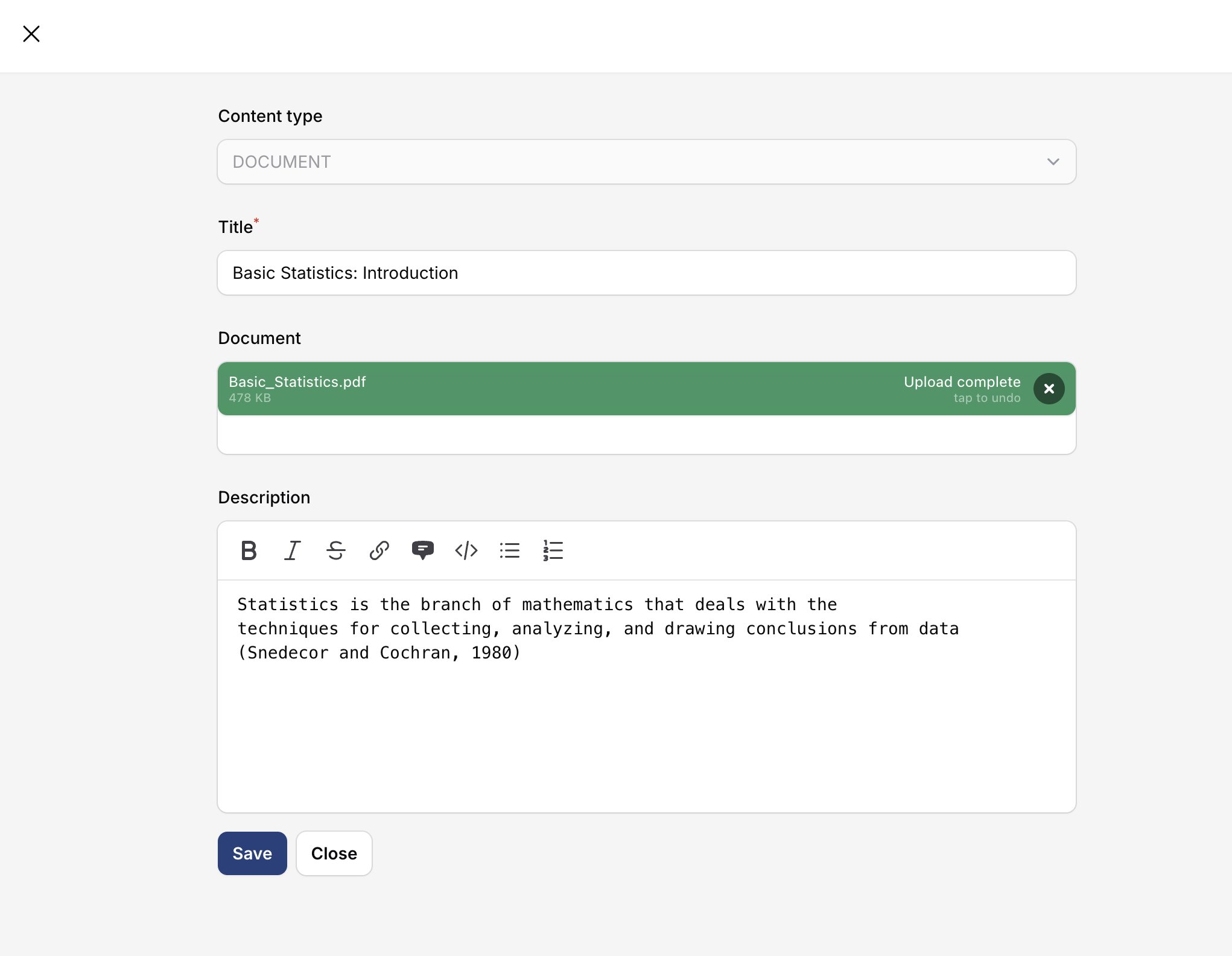
- To add Document activity, click + button and choose Document.
- Enter the activity title.
- Upload by clicking Browse or drag-and-drop your document into the Document field. You can upload a document with a maximum file size of 3.1 MB.
- Click Save to save the activity.
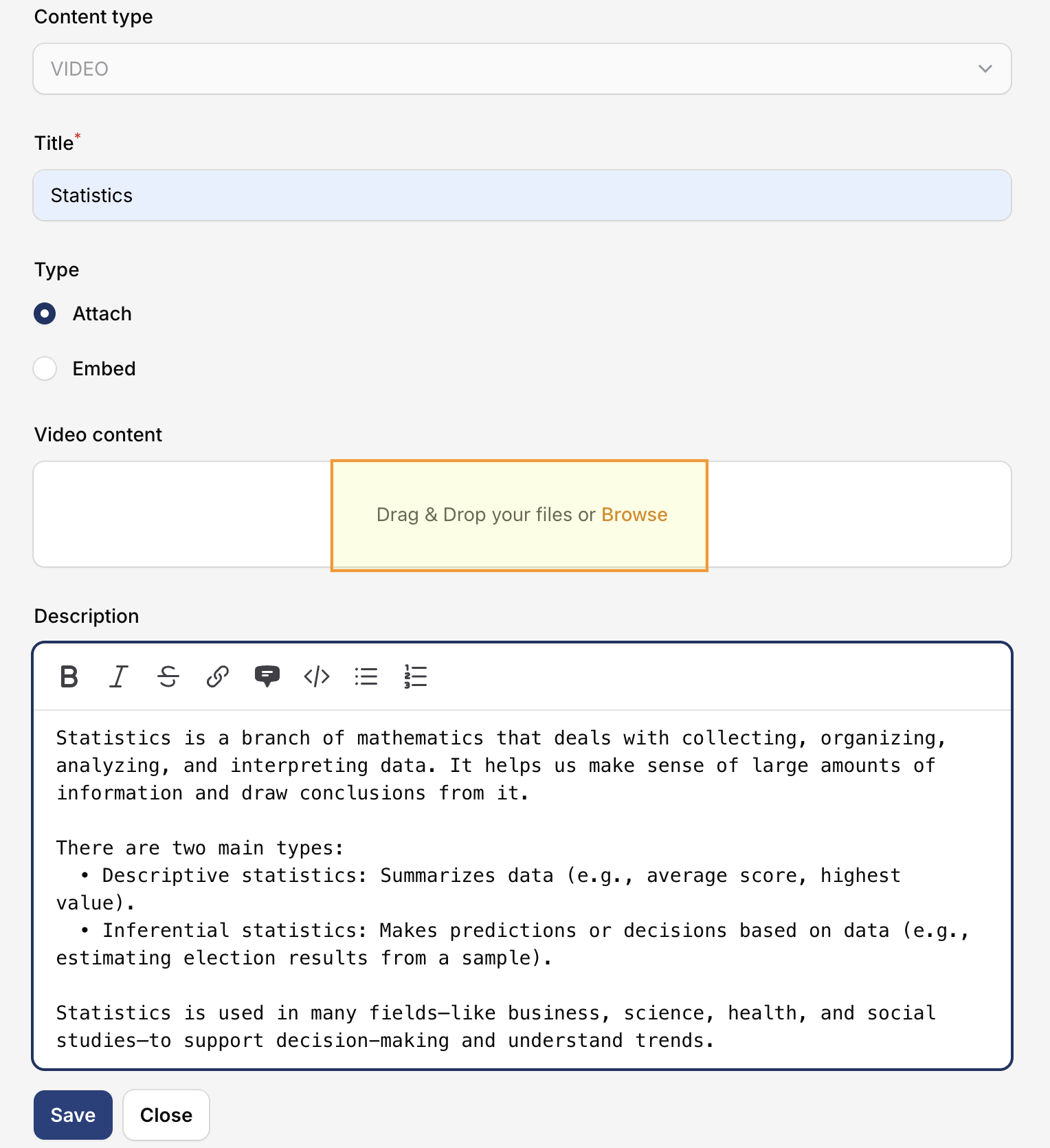
3. Video Activity
- To add a Video activity, click + button and choose Video.
- Enter a title for your video activity.
- To upload your video, you can either: Click Browse to select a file, drag-and-drop your video file, or use an embed code from a video URL (e.g. YouTube, Vimeo).
- Click the Save button to save your changes.
4. Audio Activity
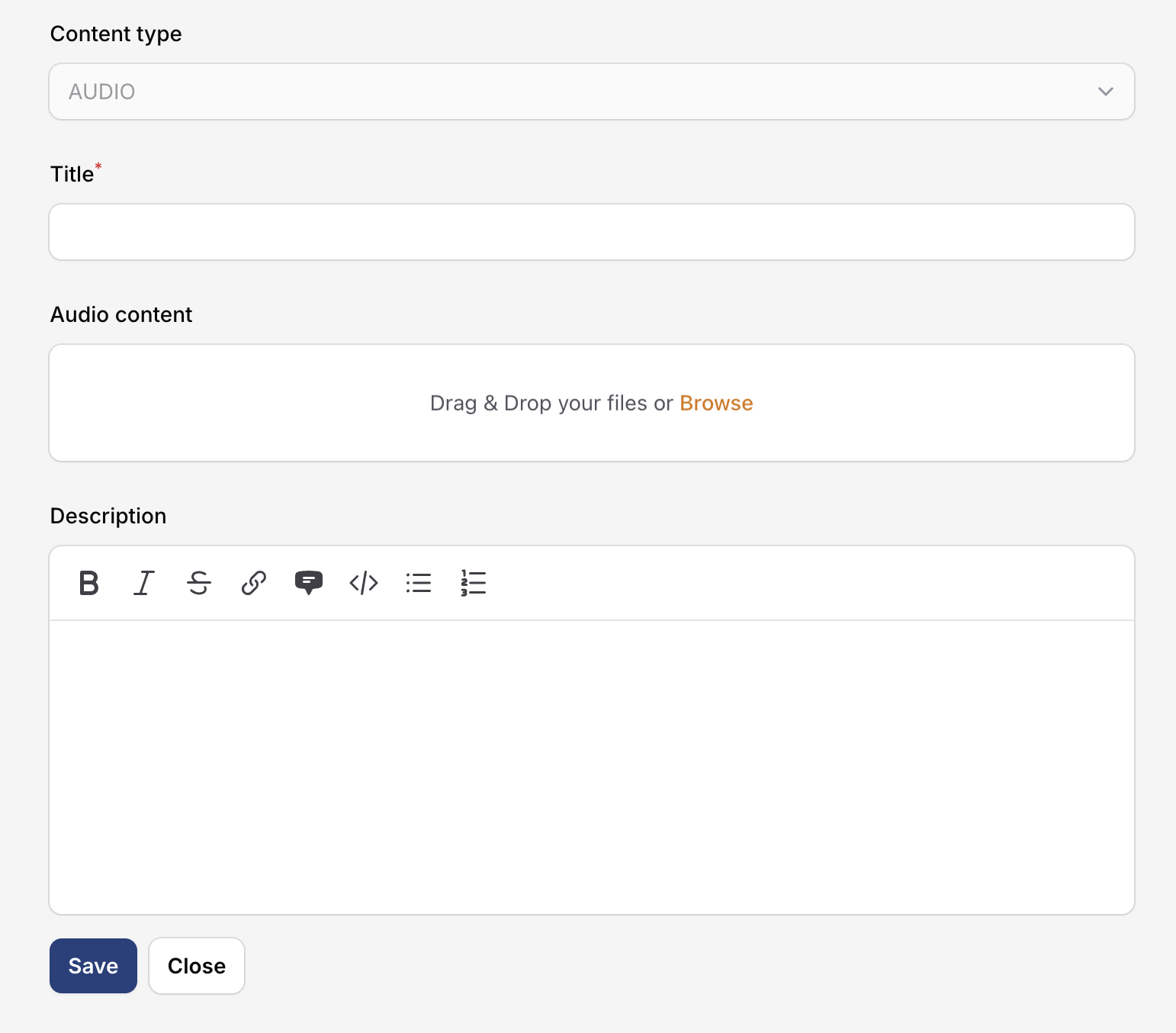
- To add an Audio activity, click + button and choose Audio.
- Enter a title for your audio activity.
- Upload your audio file by clicking Browse or Drag-and-Drop your audio file.
- Add details or a description for your audio activity.
- Click Save to save changes.
5. Link Activity
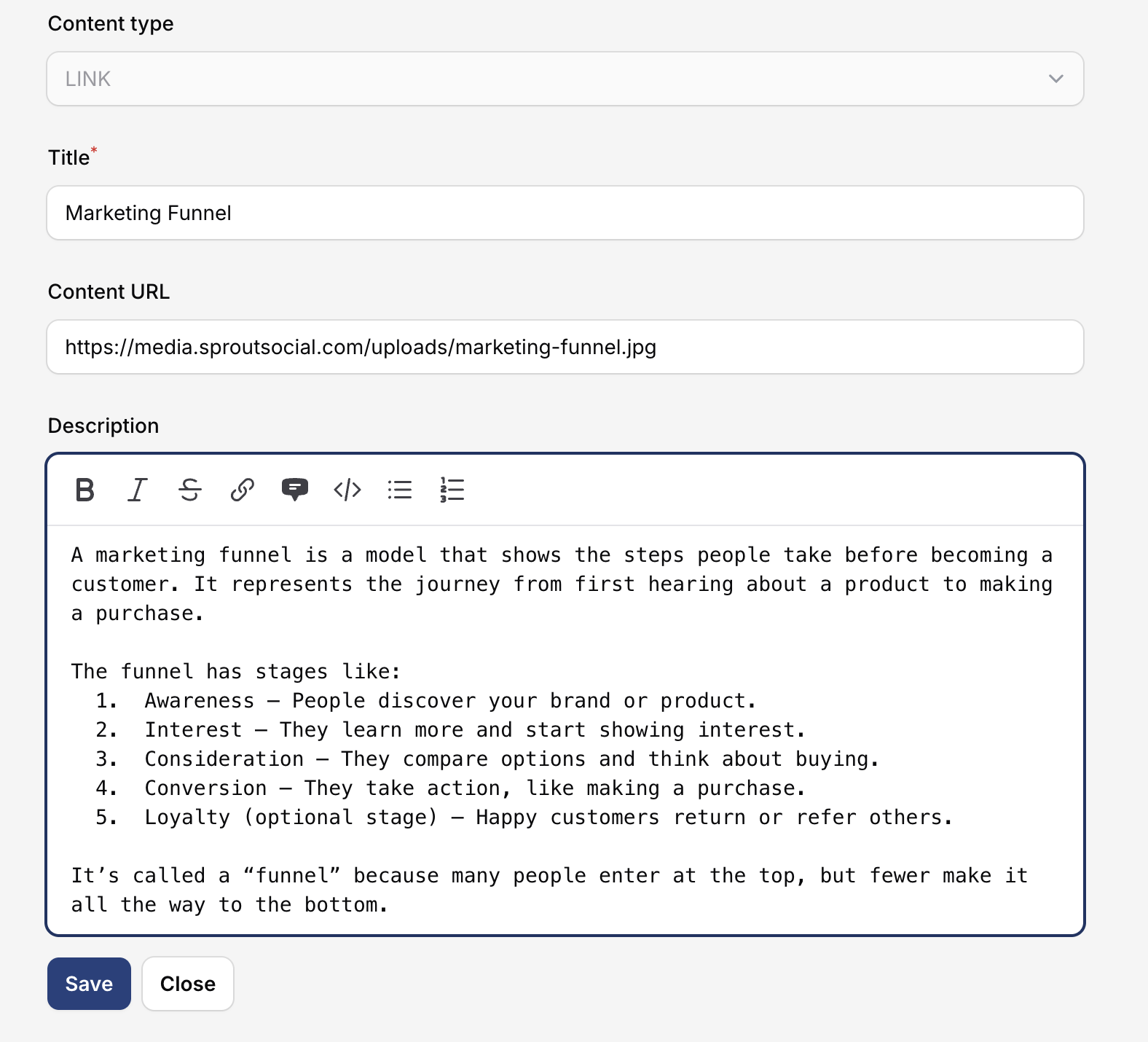
- To add a Link in an activity, click + button and choose Link.
- Enter a title for your activity.
- Enter a Content URL.
- Add a description (optional).
- Click the Save button to save your changes.
6. Image Activity
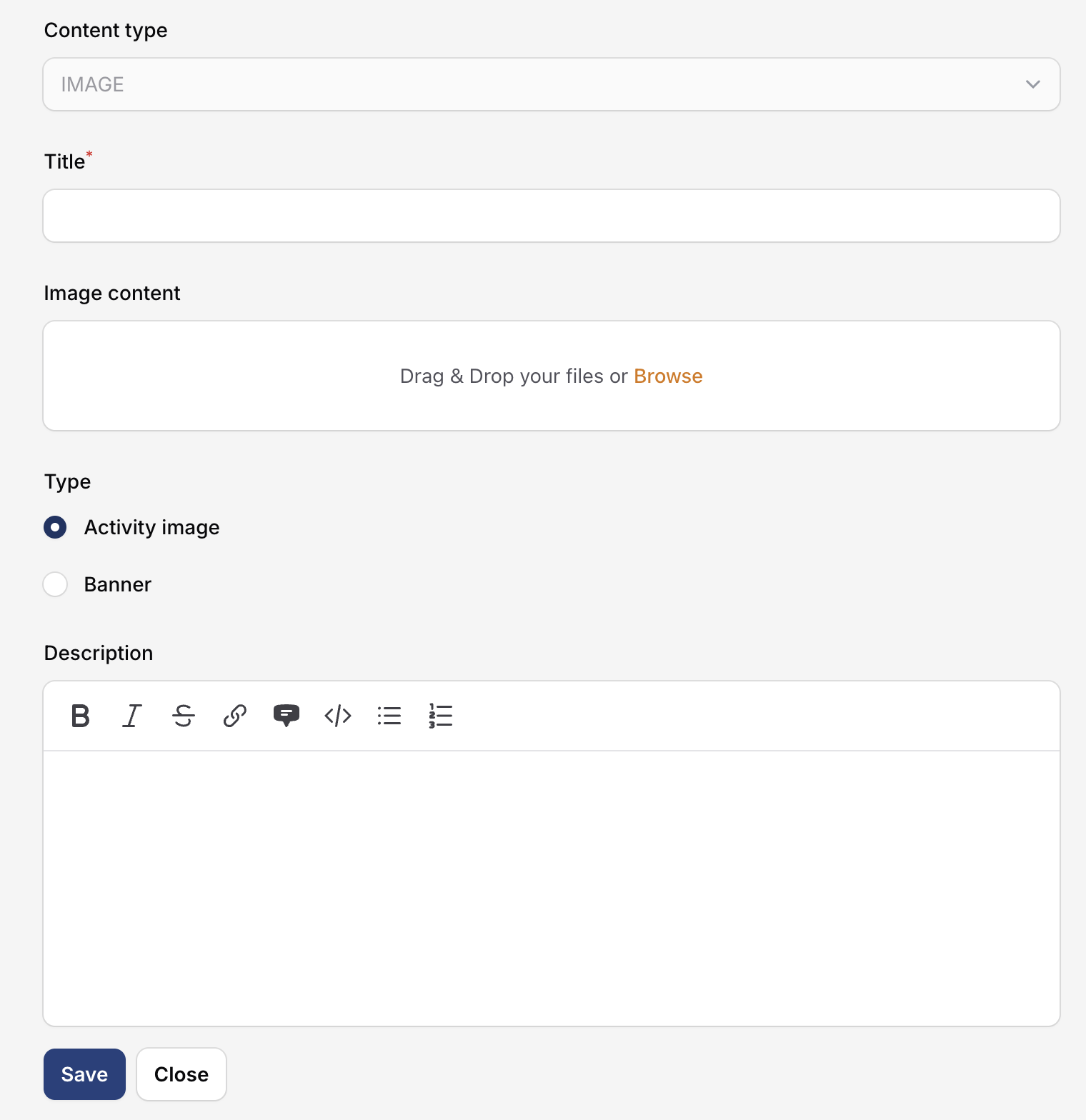
- To add an Image activity, click + button and choose Image.
- You'll be taken to the edit page.
- Enter a title for the activity.
- Upload an image by clicking Browse or Drag-and-drop.
- When adding an image, you can choose between two image types: Activity image (original size) or Banner (Cover/Contain).
- Add a detail or description of your image activity.
- Click Save to save your activity.
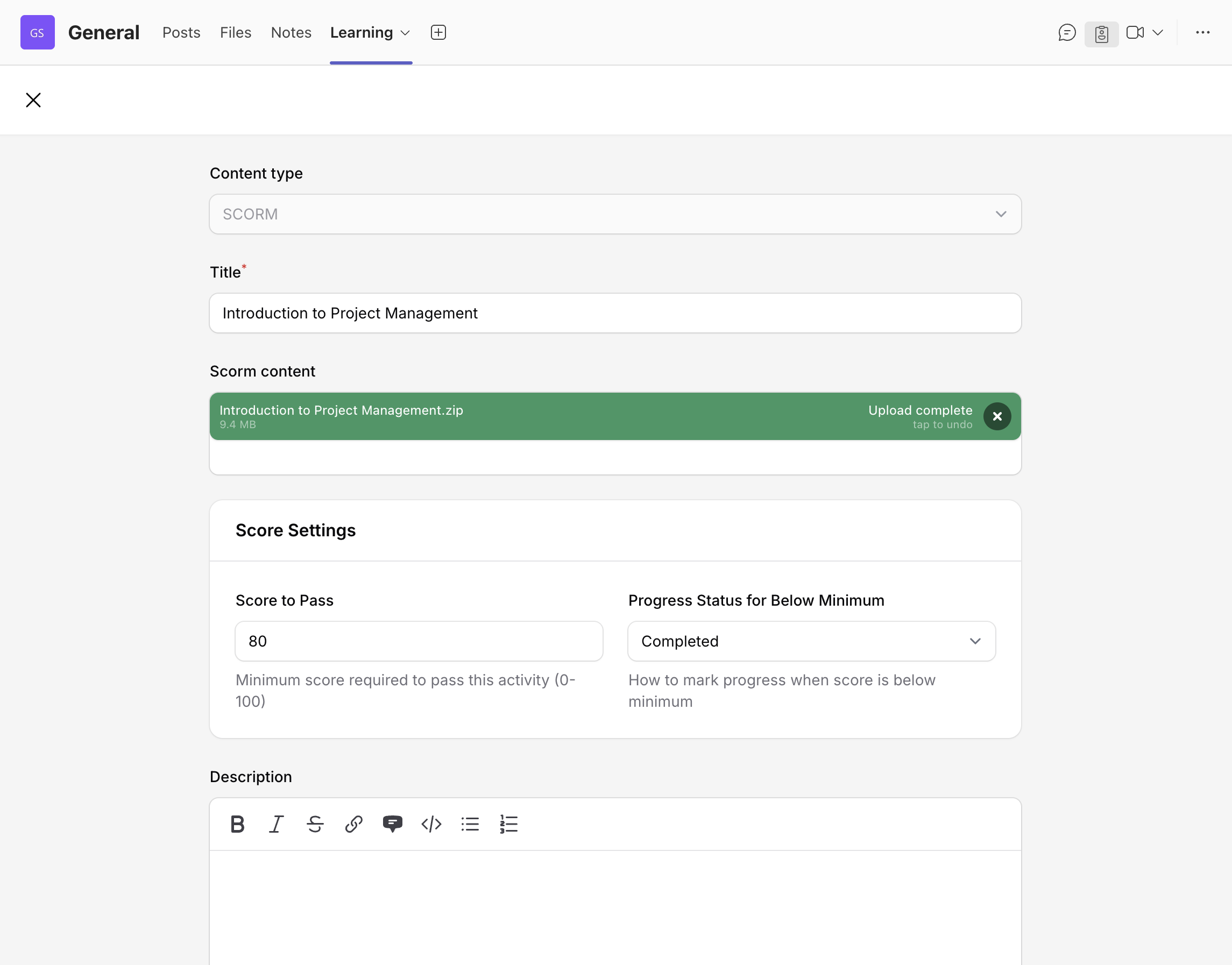
7. SCORM Activity
SCORM packages configured to open in a new window do not work reliably inside Teams tabs (iframe restrictions). Publish SCORM to open in the same window.
- Input the activity Title.
- Upload SCORM File by clicking Browse or drag-and-drop your .zip file into the SCORM Content field.
- Set the passing score for students (Optional).
- Specify whether a score below the passing threshold will mark the activity progress as Completed or Incomplete (Optional).
- Add Description (Optional).
- Click Save or Update to finalize.
8. Quiz Activity
Create quizzes with multiple question types: multiple choice, true/false, short answer, and more. Set passing scores, time limits, and attempt limits. Automatic grading is available for most question types.
9. Panorama Interactive Activity
Create immersive 360° interactive experiences. Upload a panoramic image and add interactive hotspots with information, questions, or navigation points.
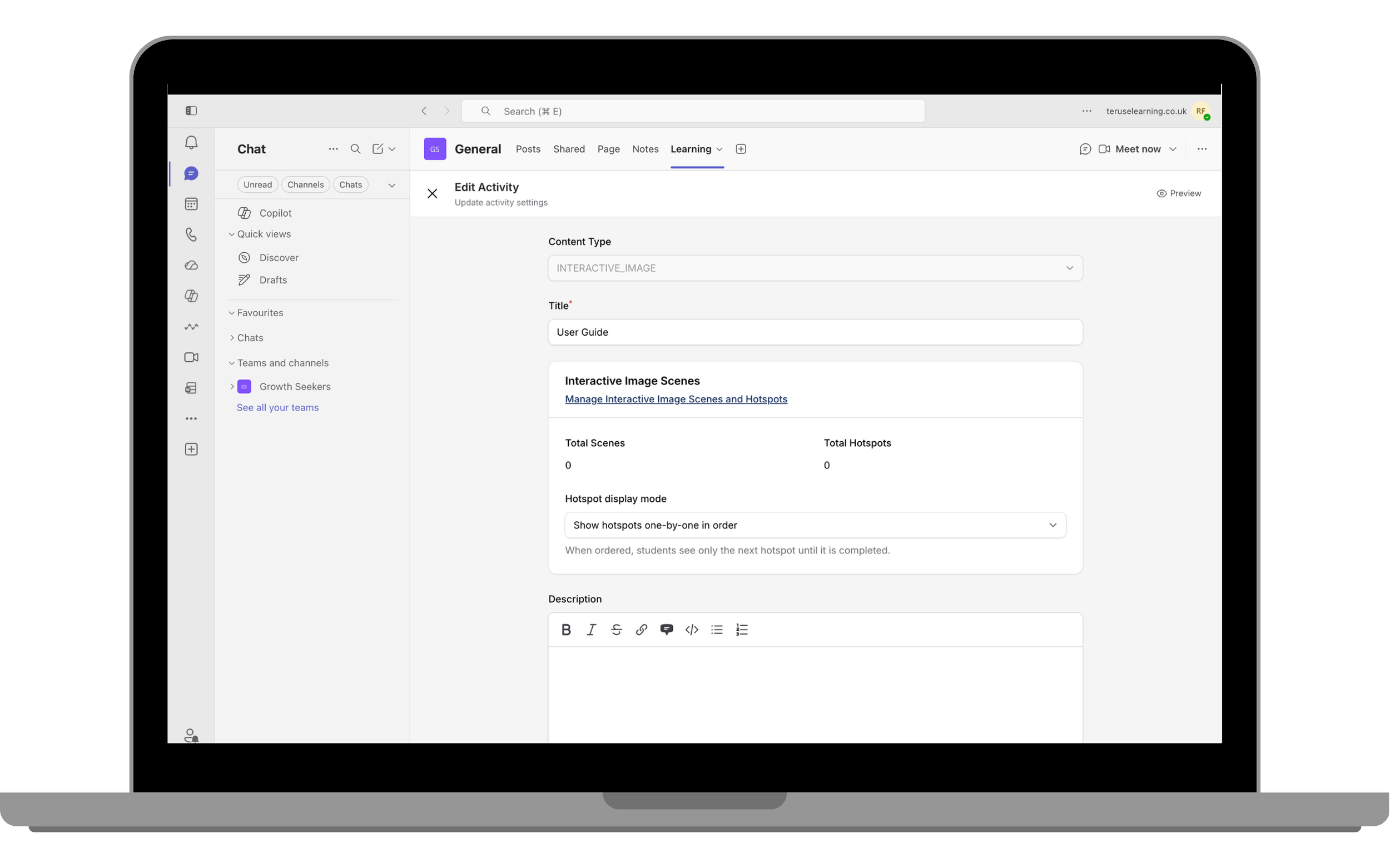
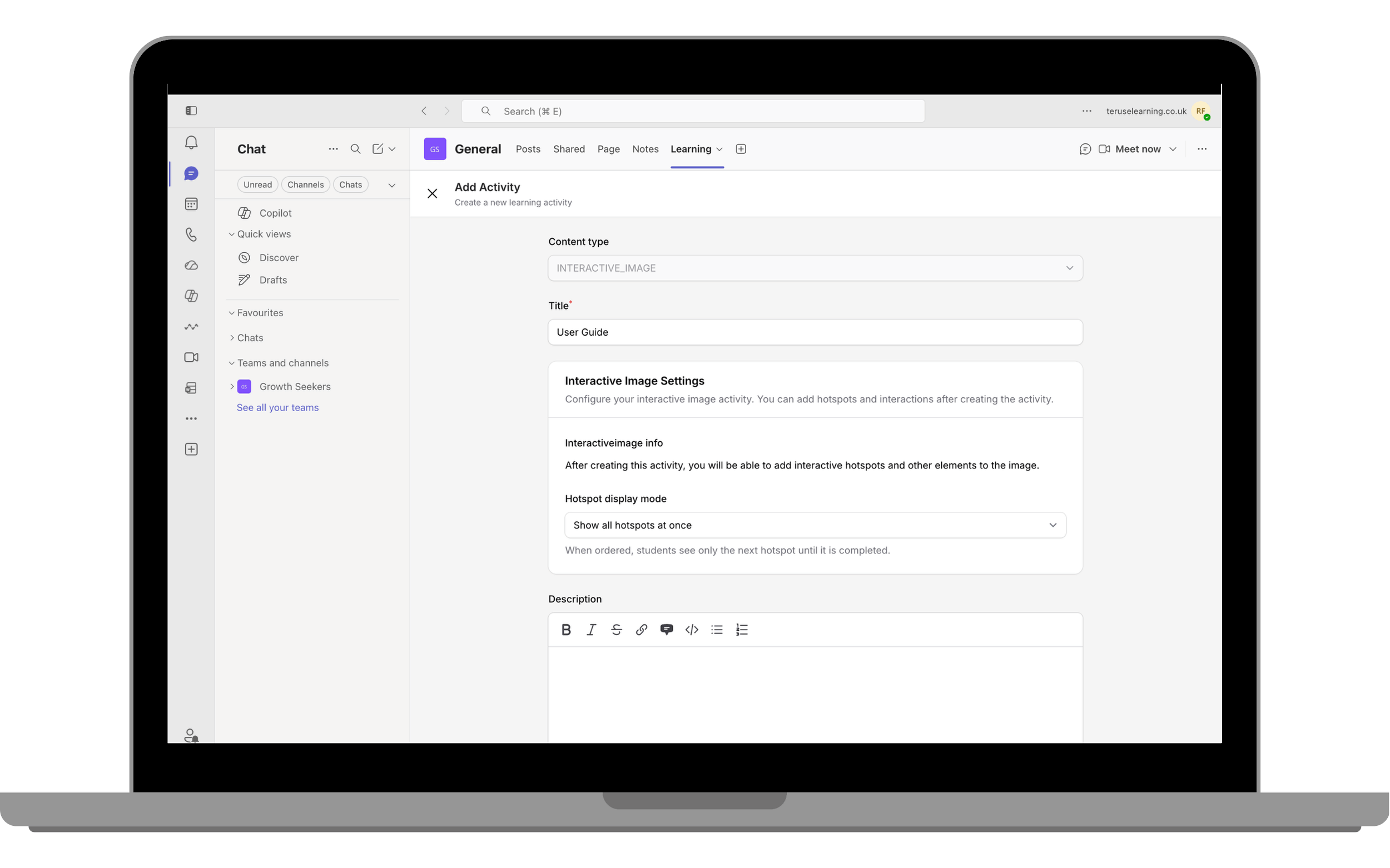
10. Interactive Image Activity
Add clickable hotspots on any image. Each hotspot can display text, links, or additional images when clicked by the student.
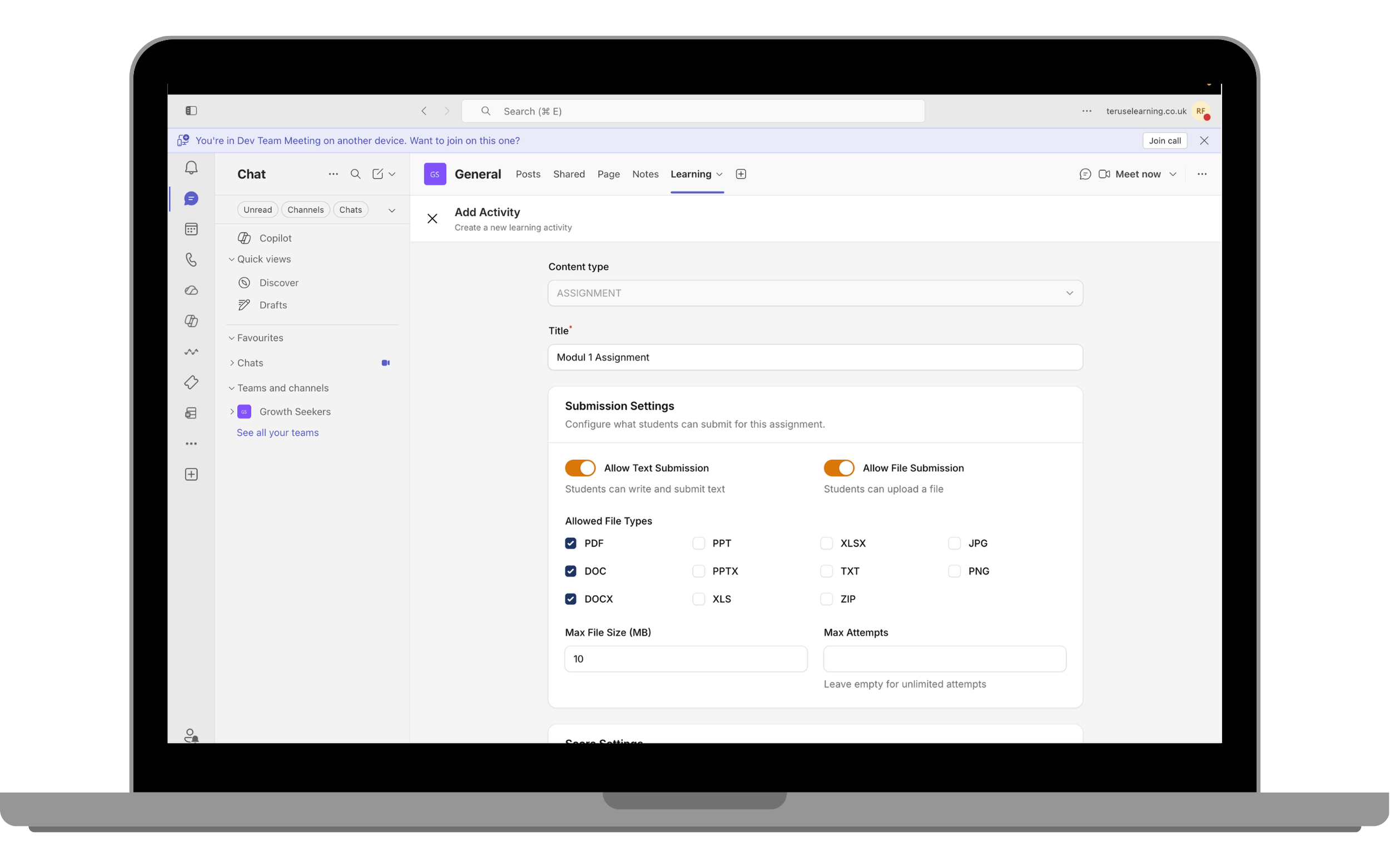
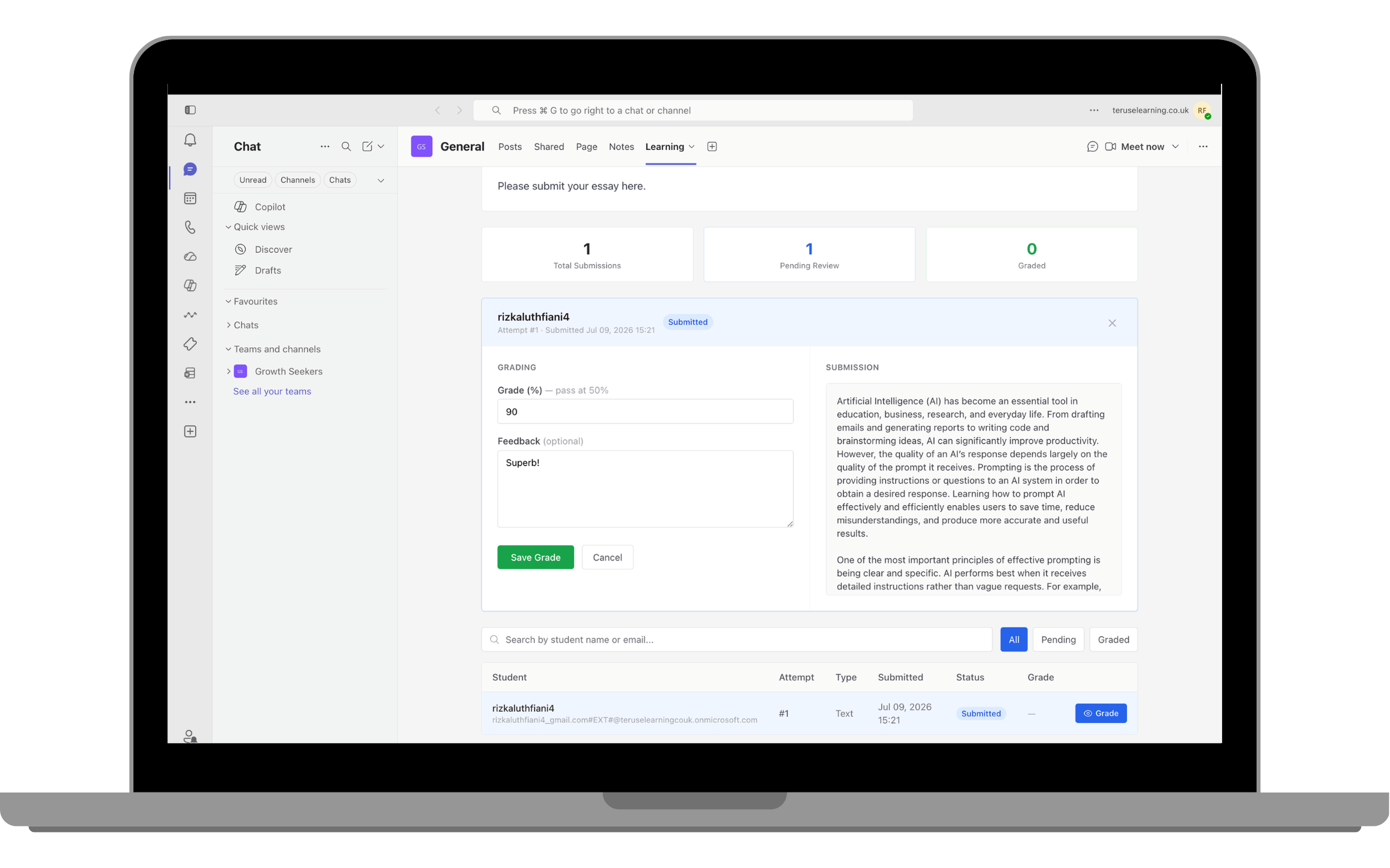
11. Assignment Activity
Create assignments where students submit files or text responses. Set due dates, grade submissions, and provide feedback directly within Shrewd LMS.