How to Use Shrewd LMS as Teacher
Step-by-step instructions for installing the app, setting up courses, adding and managing activities, and accessing reports — all within Microsoft Teams.
Important Note: Shrewd LMS works natively within Microsoft Teams and does not require Azure Active Directory (Azure AD) configuration. We strongly recommend not using Azure AD groups or custom restrictions to control access, as this may cause unexpected access issues. Manage access using Microsoft Teams settings and policies only.
Course Reporting
Track member progress in the Reports tab
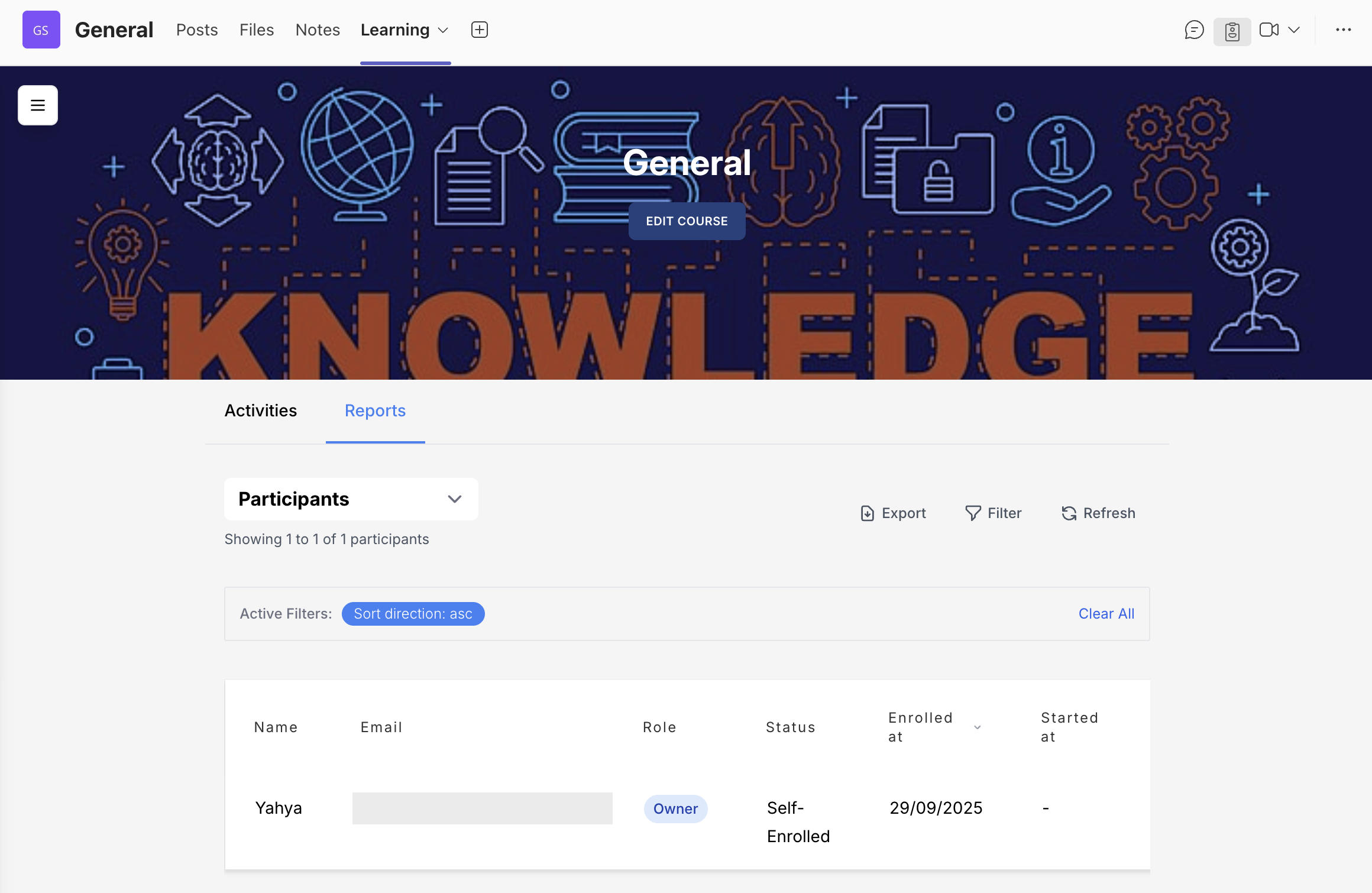
Participants
Shows participant details, completion progress, and individual scores. Enrolled students appear automatically in the table.
Participants Report
The Participants report displays general information about course participants, including their completion progress and individual scores. Once a student is enrolled in your course, their details will automatically appear in the Participants table.
Filtering Participants
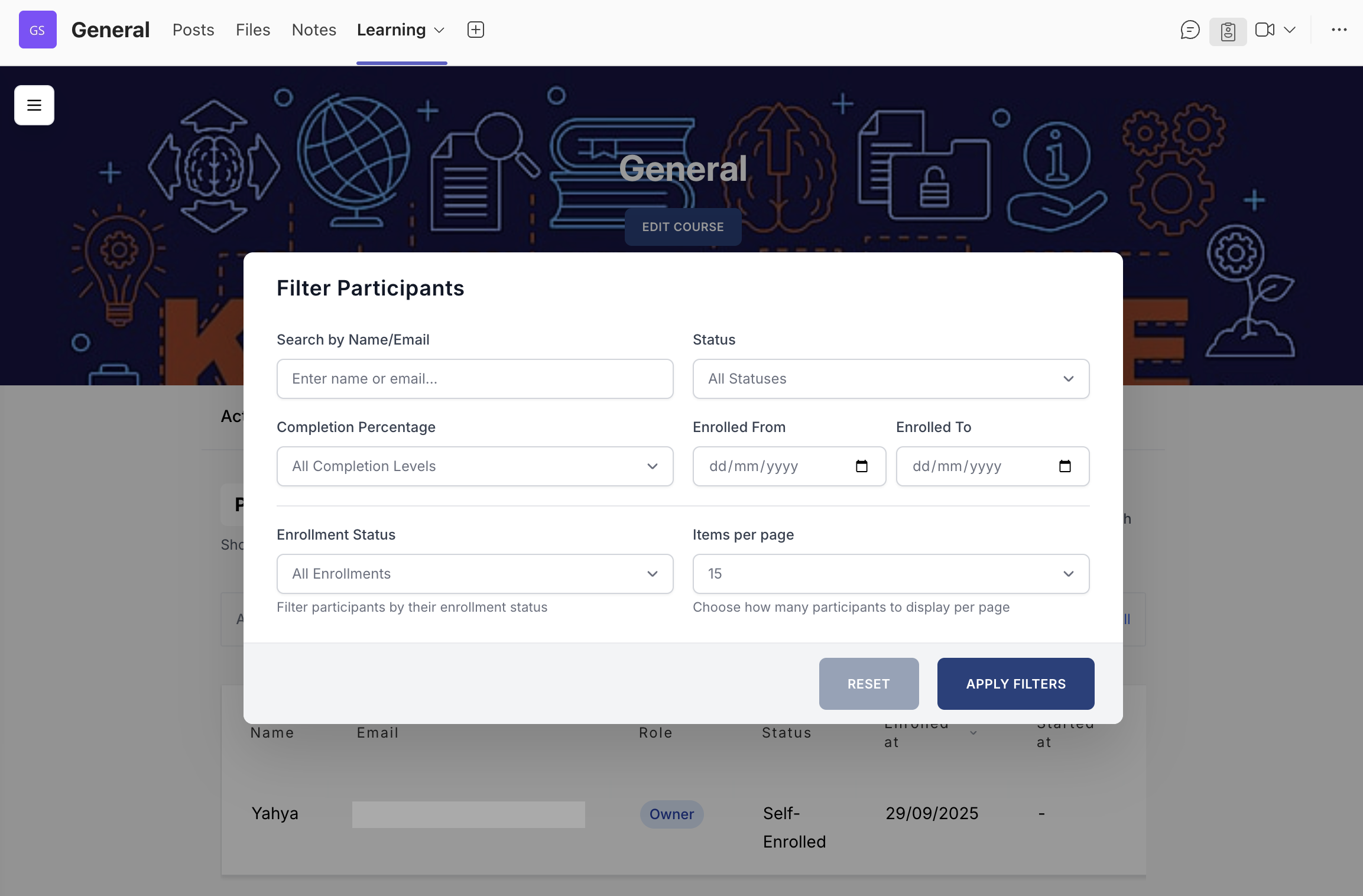
Course owners can filter participants using filtering tools:
- Name or email
- Completion percentage
- Enrollment date range
- Enrollment status (Active/Archived)
- Enrollment type and progress status filters
- Items per page
Activity Completions
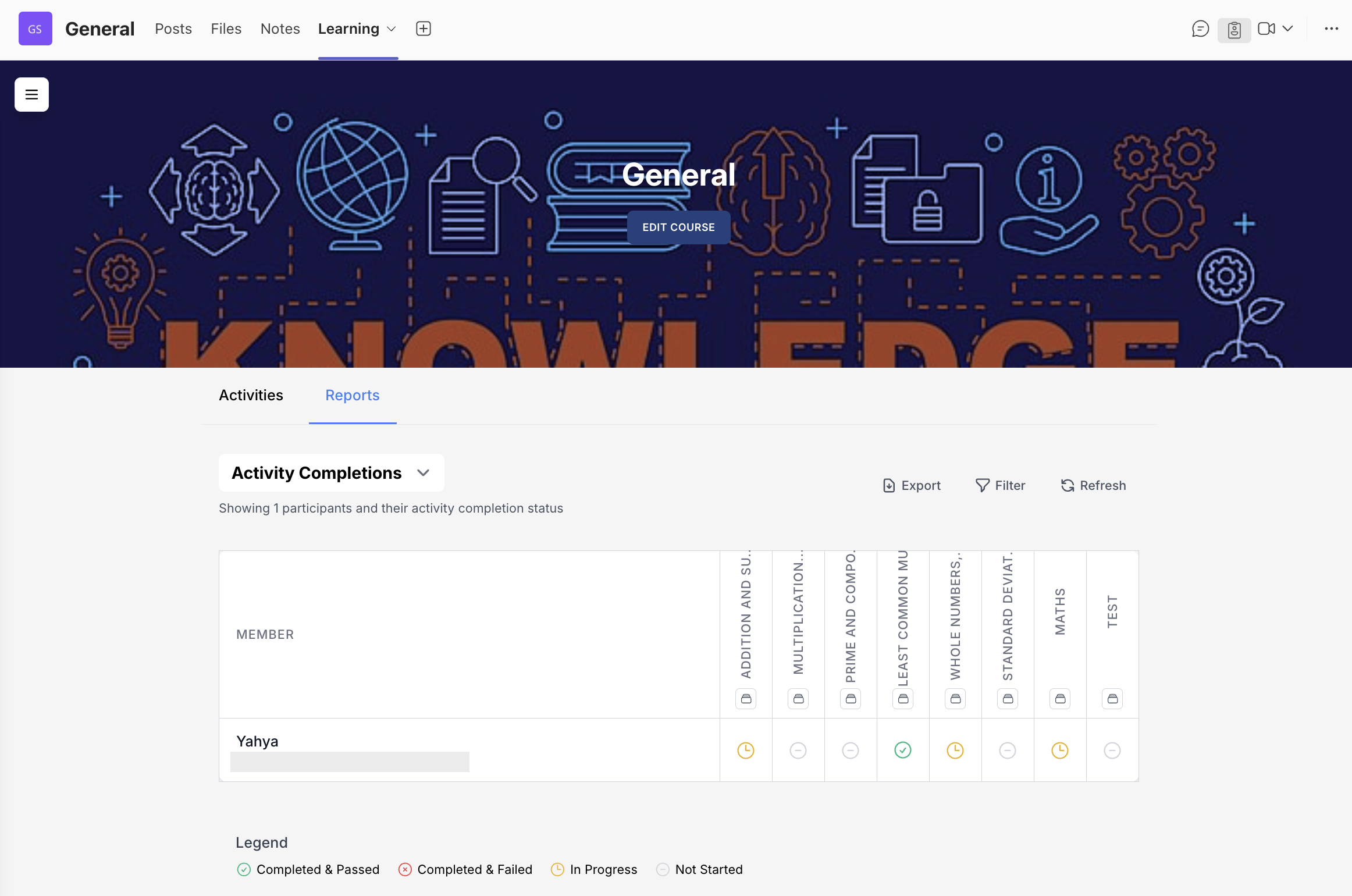
Provides a detailed activity-by-activity completion matrix for each participant.
Activity Completions Report
This report gives a detailed overview of each participant's progress, displaying the completion status of all course activities. It enables course owners to quickly see which activities have been completed, are still in progress, or have not yet been started.
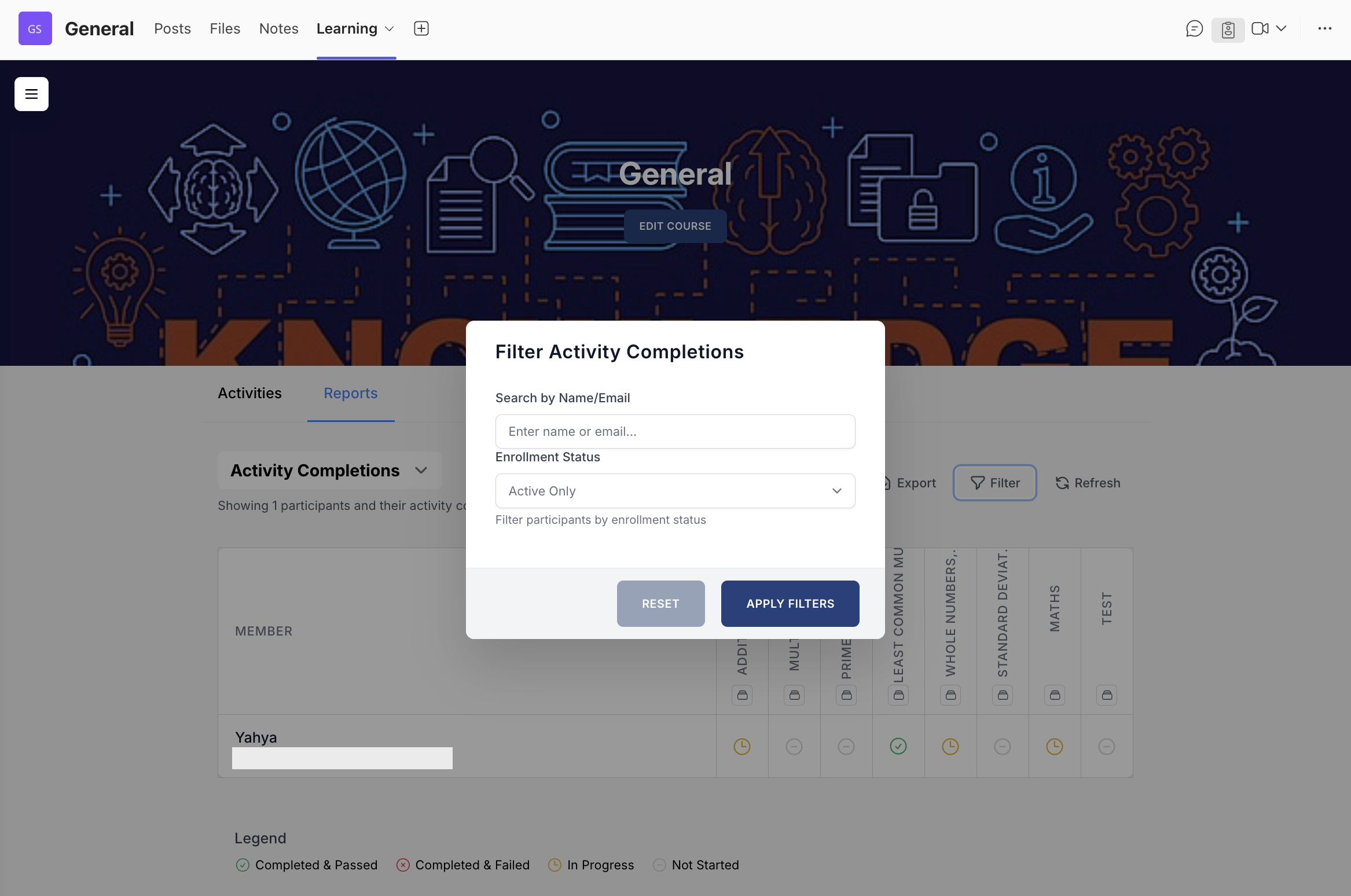
Filtering Activity Completions
Course owners can filter Activity Completions data by:
- Participant name or email
- Enrolment status (Active/Archived)
Student Scores
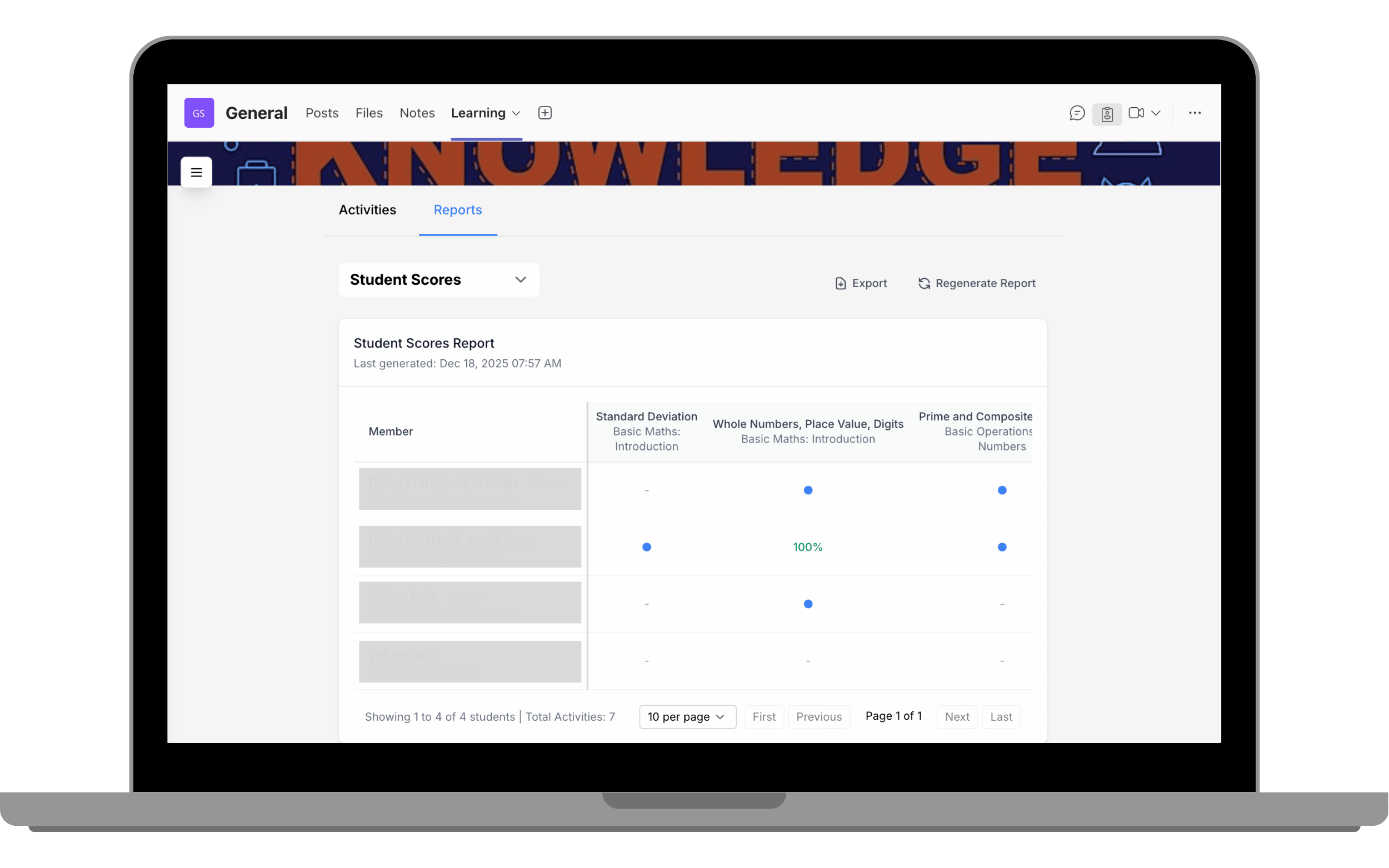
Displays student performance across activities. Score-based activities (BLC/SCORM/Quiz) show percentages; non-score activities show completion dots.
Student Scores (Gradebook)
The Student Scores report allows course owners to view each student's performance across individual activities within a course. The report displays activity-level scores per student, making it easy to monitor progress, identify learning gaps, and review completion outcomes.
Activities that generate scores (BLC, SCORM, Quiz) display a score from 0-100%. Activities without scores are marked with a blue dot to indicate completion.
Reports API
Integrate report data with your own organisational systems. Available on Premium Plan.
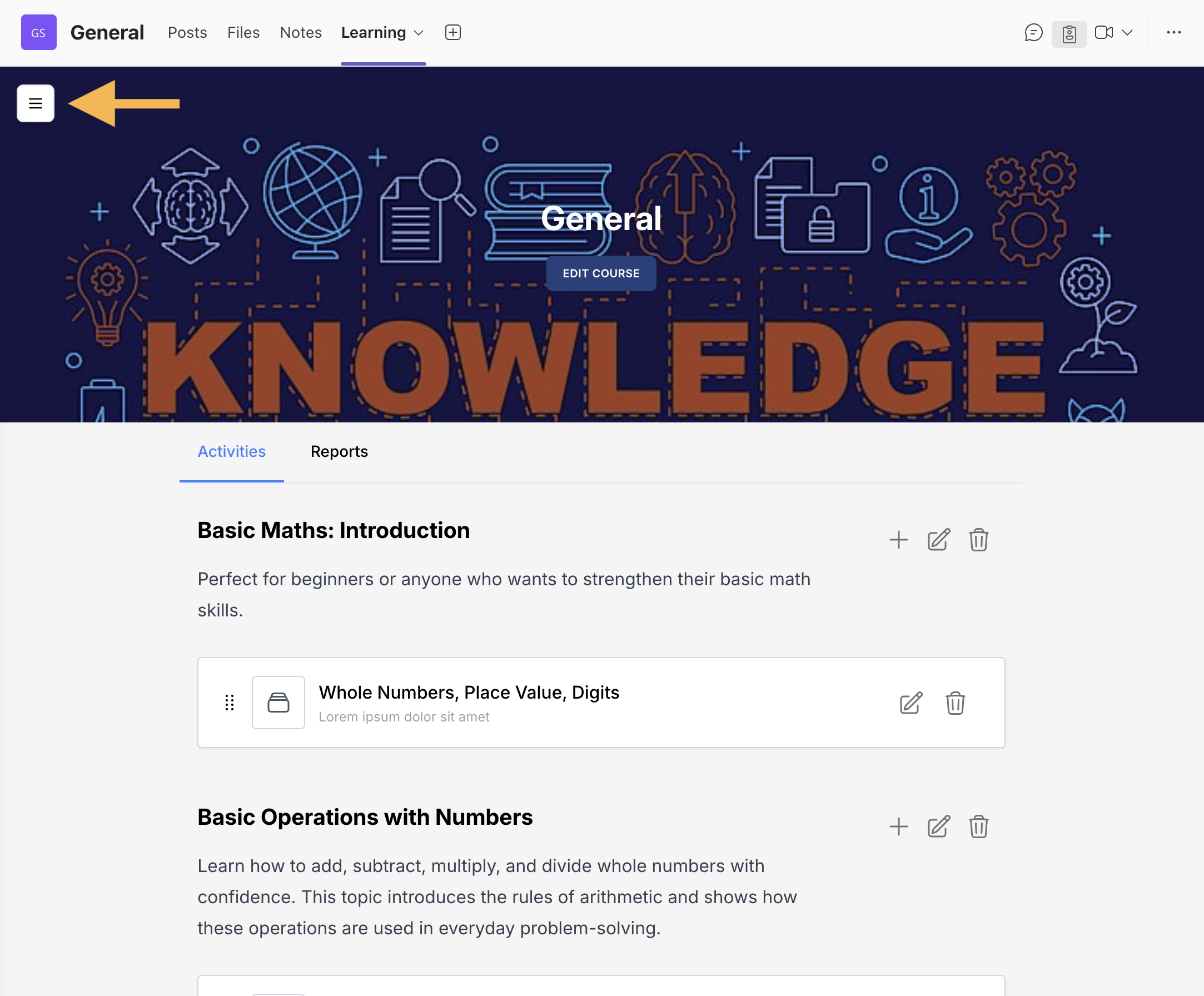
Click the floating button
Click the floating button in the upper-left corner of the page.
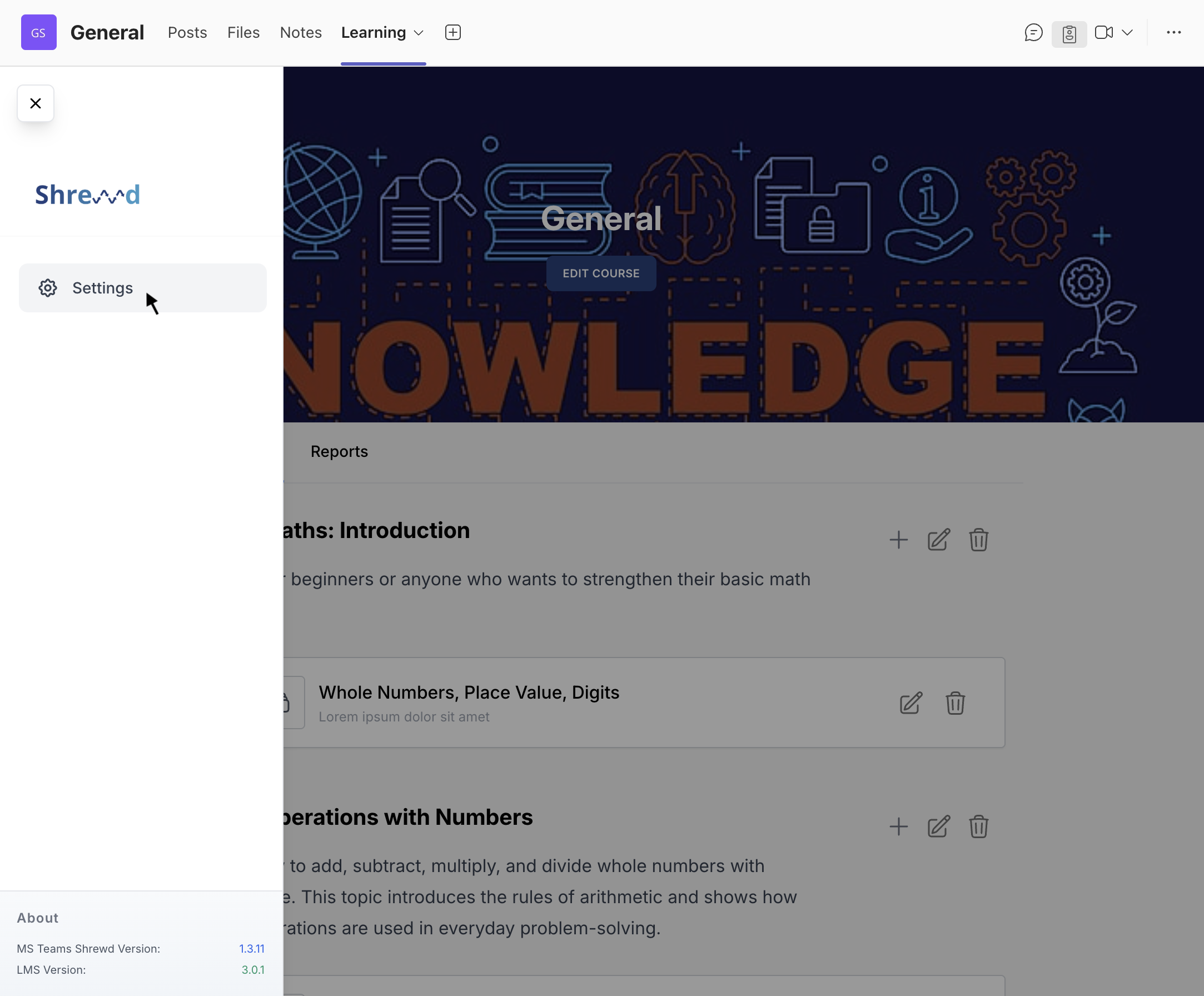
Select Settings
Select Settings.
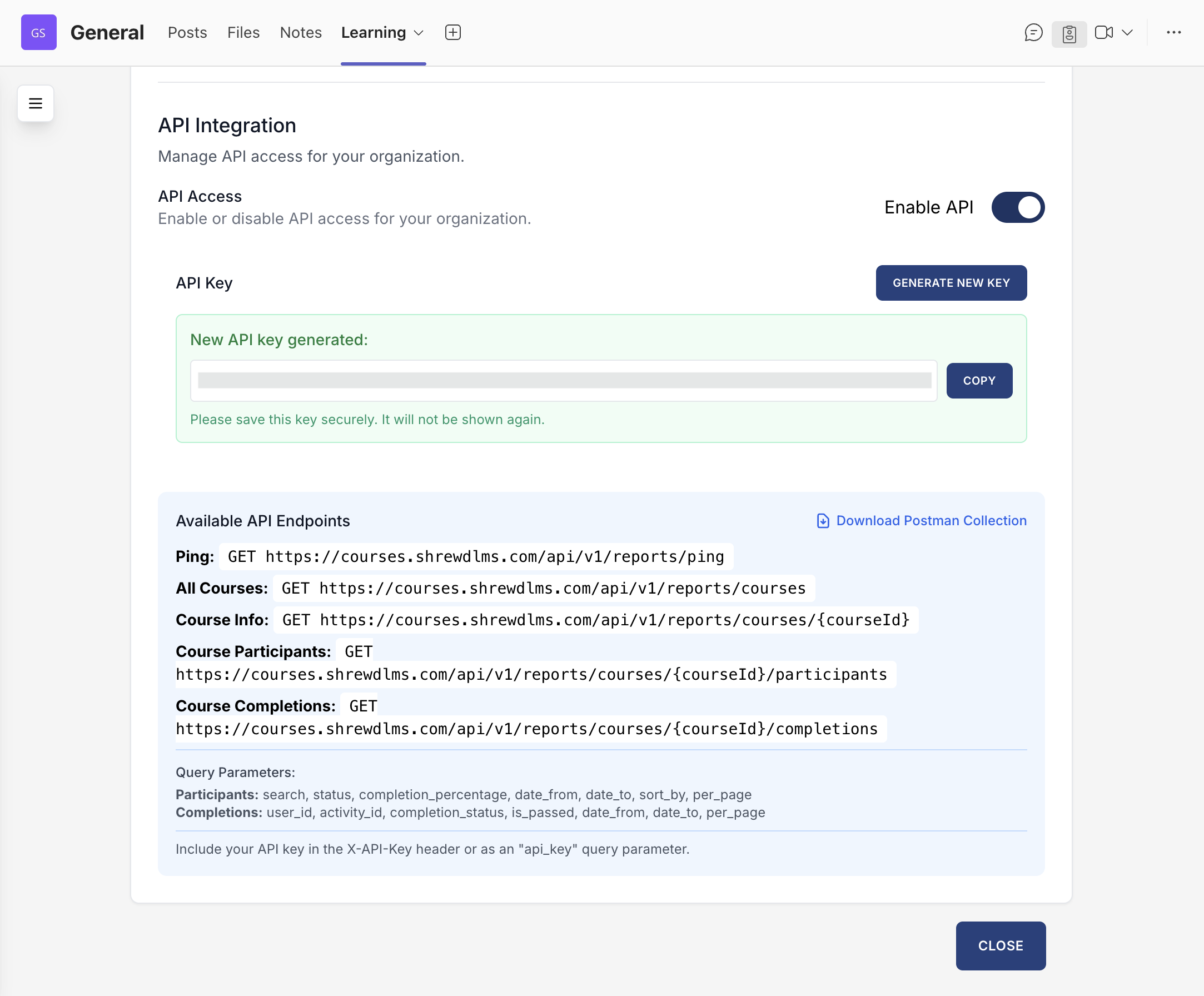
Generate API Key
In the API Integration section, click Generate New Key to create your access token.
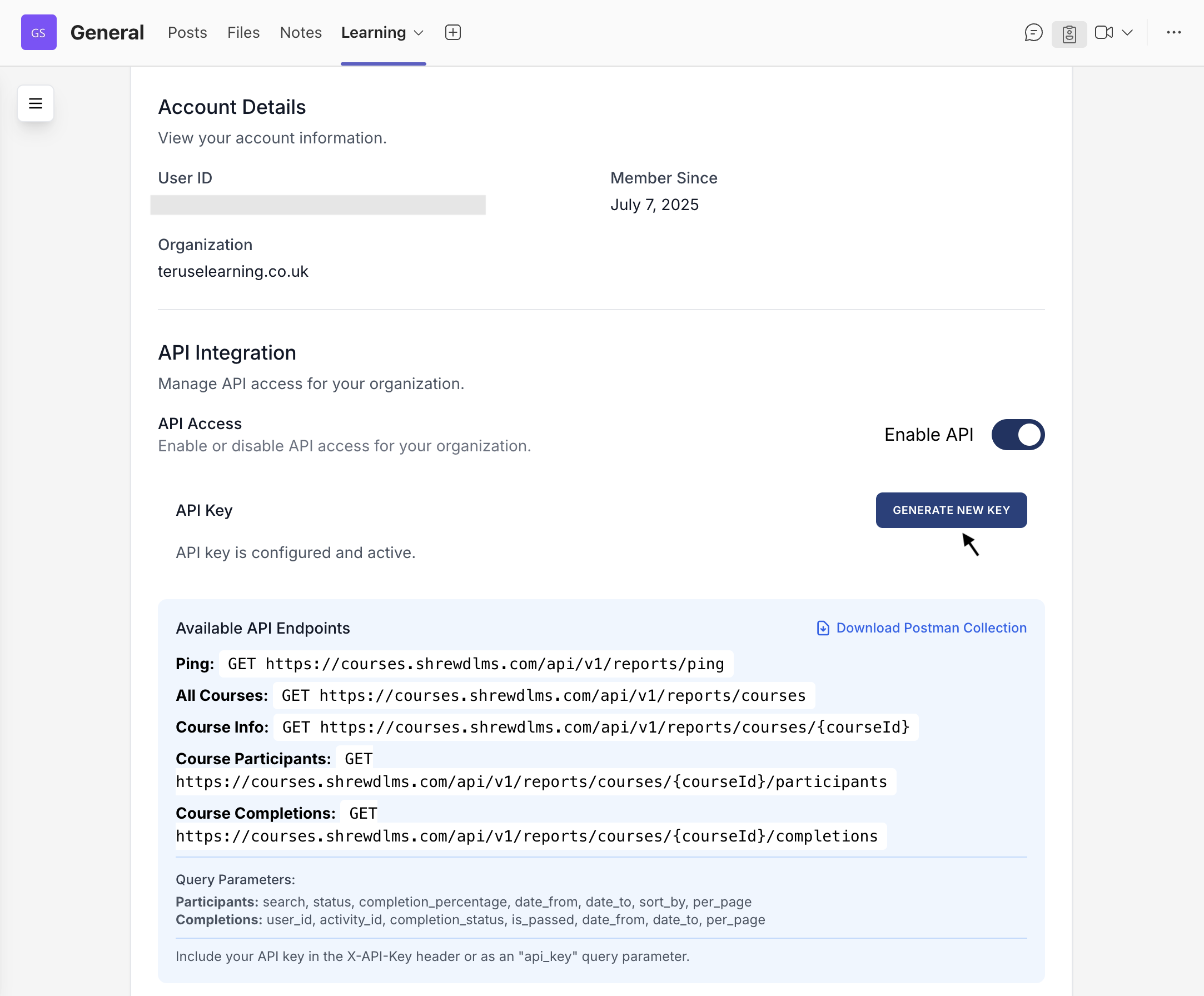
Integrate with your systems
Once the key is generated, you can seamlessly integrate Shrewd LMS reporting with your existing systems, dashboards, or analytics tools.