
How to Use Shrewd LMS as Teacher
Step-by-step instructions for installing the app, setting up courses, adding and managing activities, and accessing reports — all within Microsoft Teams.
Important Note: Shrewd LMS works natively within Microsoft Teams and does not require Azure Active Directory (Azure AD) configuration. We strongly recommend not using Azure AD groups or custom restrictions to control access, as this may cause unexpected access issues. Manage access using Microsoft Teams settings and policies only.
Adding a Shrewd Course to Team
Create a Learning tab inside your selected Team/Channel
To get started with Shrewd LMS for your team, follow these steps:
Choose Team and Channel
Select the Team and Channel where you want to add your course. Make sure you have the Owner or Member permissions required to add tabs.
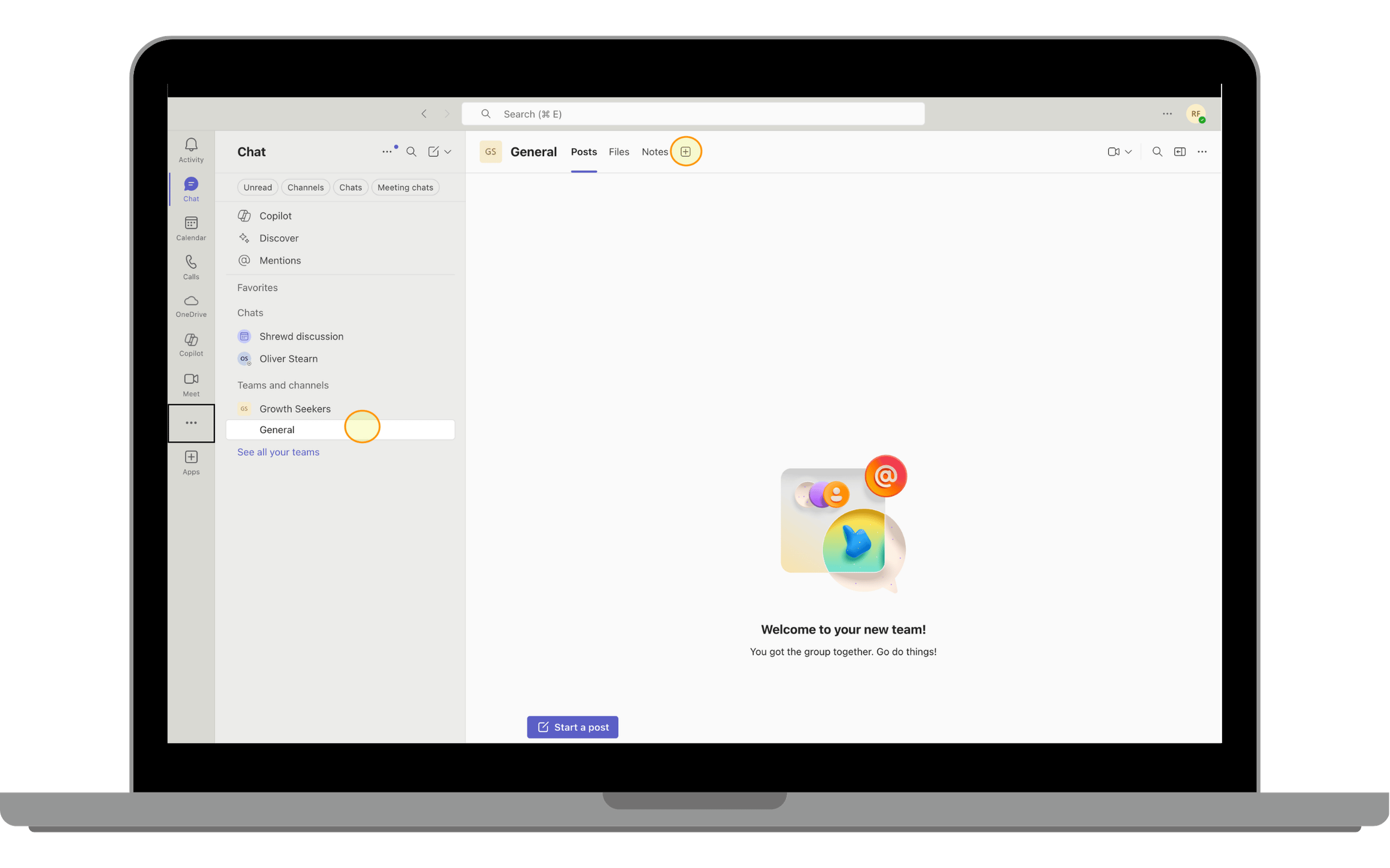
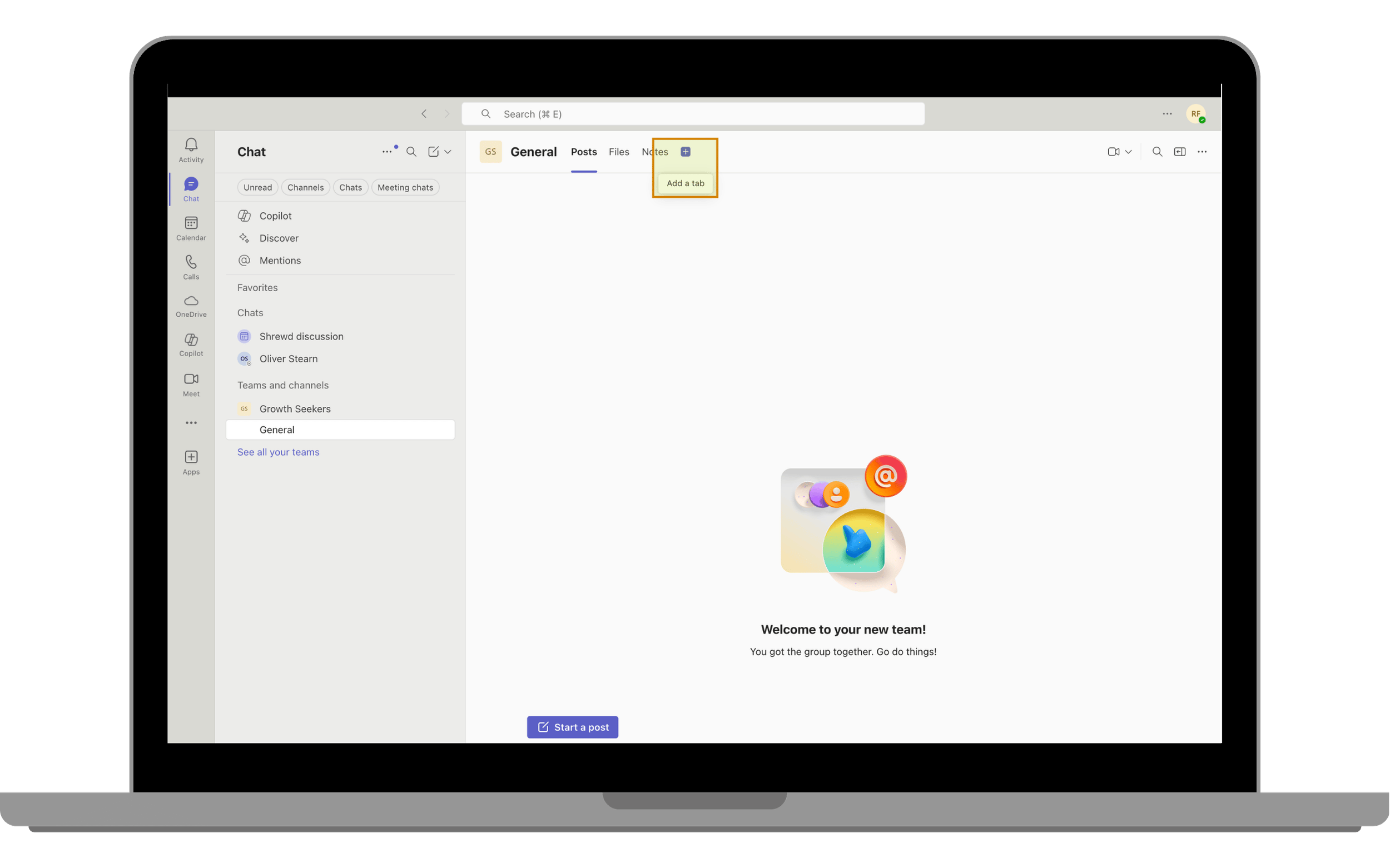
Add Tab with + Button
At the top of the Channel, click the + (Add a tab) button to open the tab gallery.
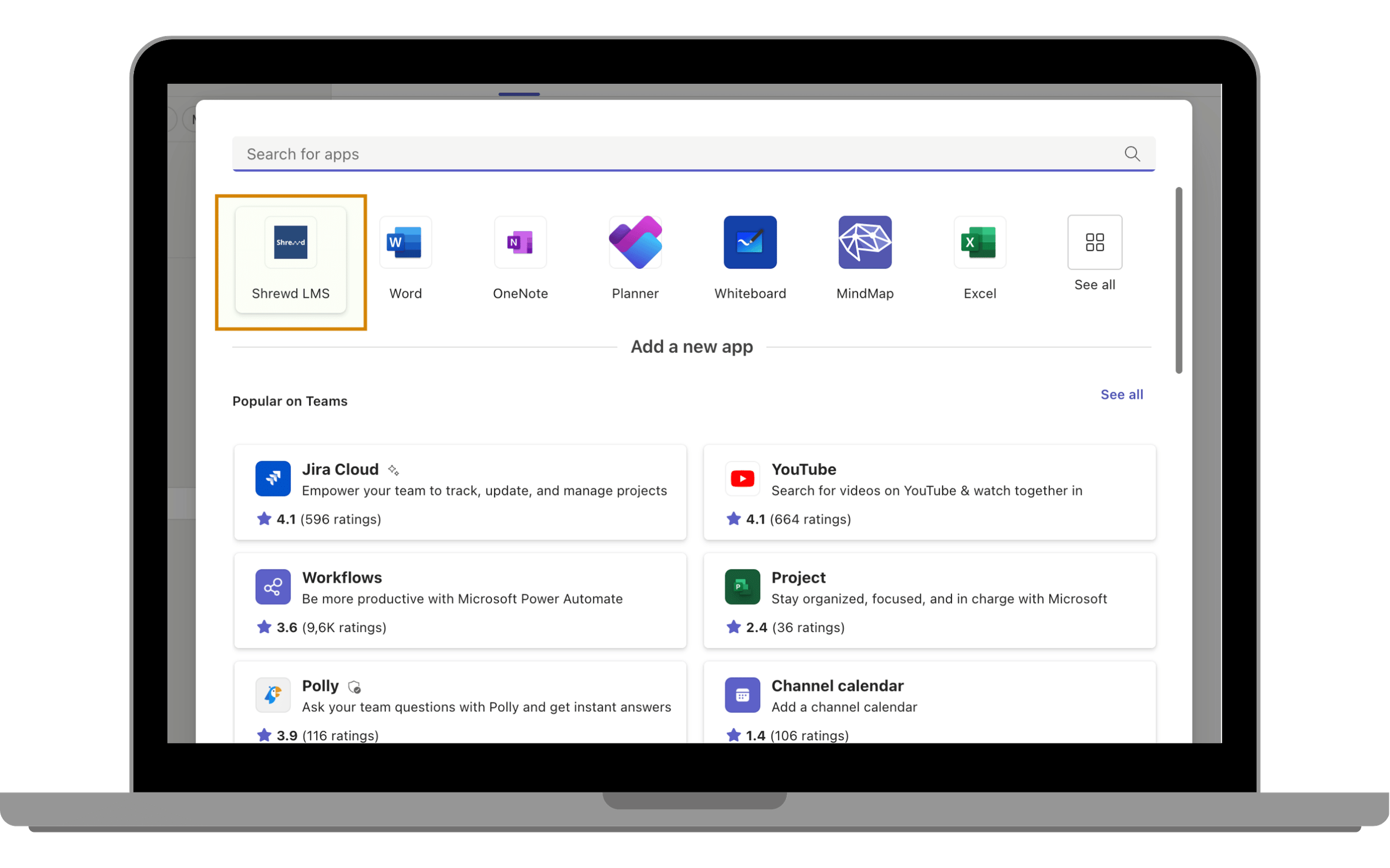
Select Shrewd LMS App
In the list of available apps, search for and select Shrewd LMS.
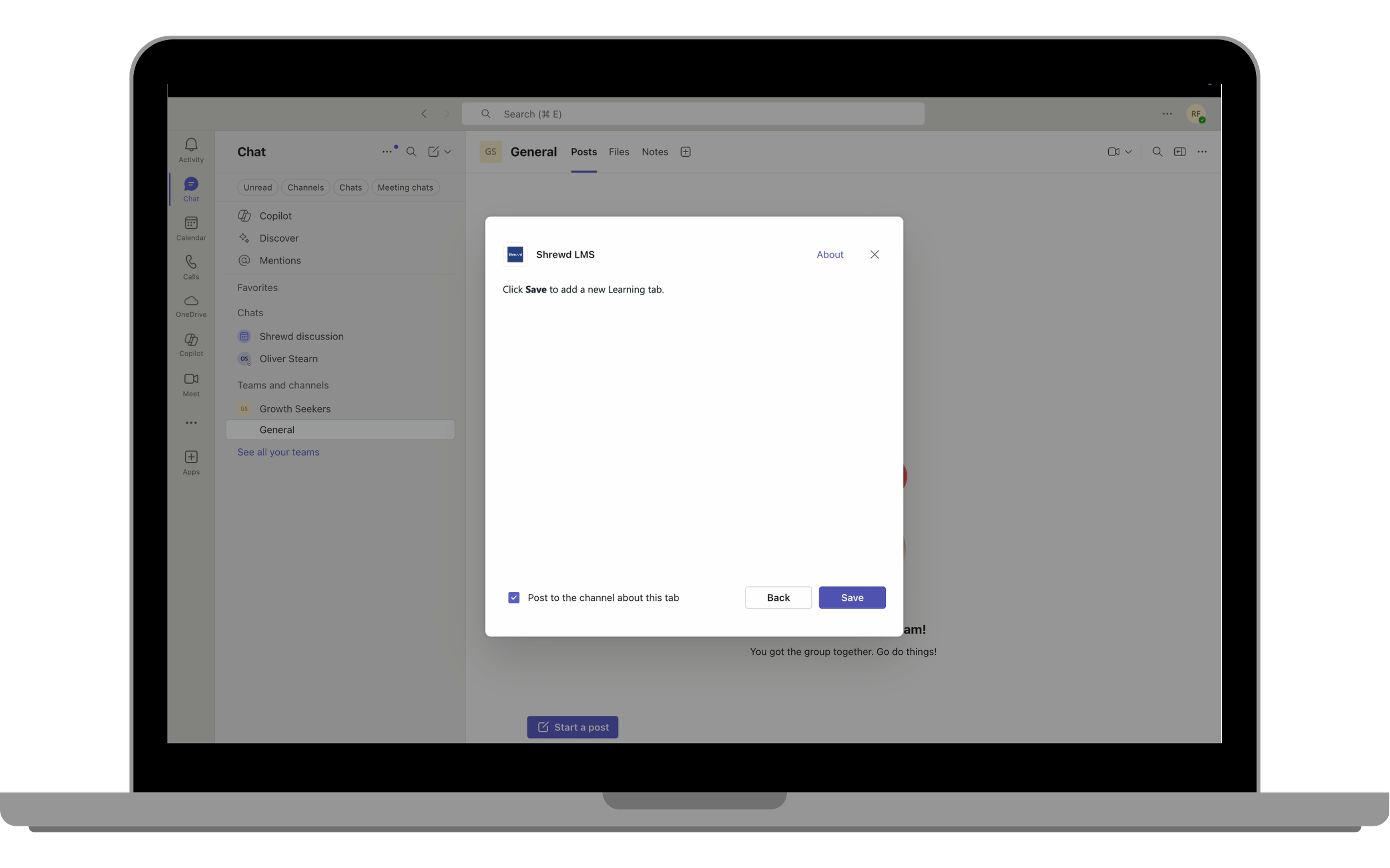
Save Learning Tab
Review your selection and click Save to create the Learning Tab in the Channel.
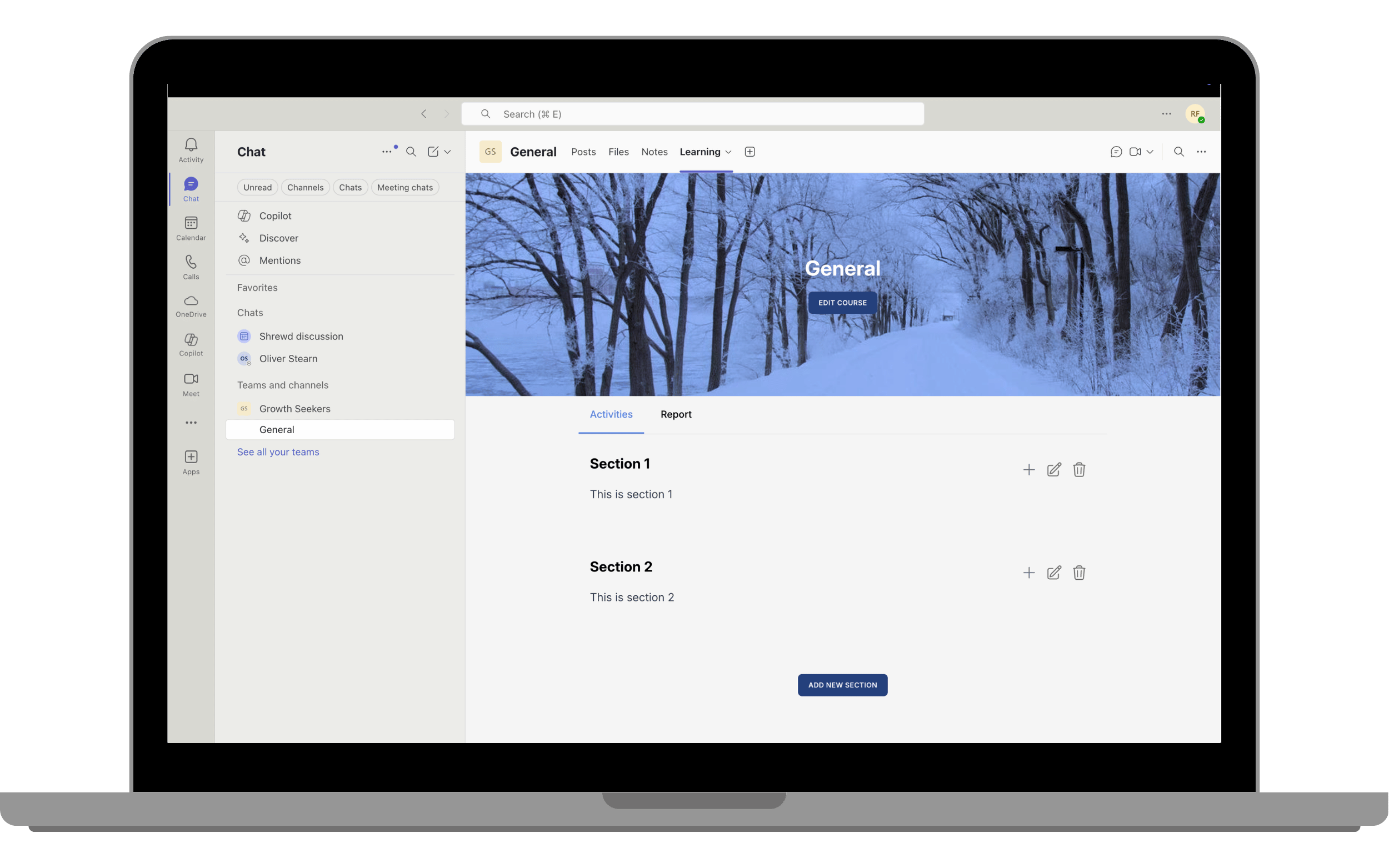
Verify the Learning Tab
Once saved, the Learning Tab will appear at the top of the Channel. Click it to open the Shrewd LMS course interface.
Important Note: The Course Owner/Admin MUST NOT add the Shrewd LMS app in the same scope. If it has already been added to a specific Teams or Chat, it cannot be added again in that same scope.