How to Use Shrewd LMS as Teacher
Step-by-step instructions for installing the app, setting up courses, adding and managing activities, and accessing reports — all within Microsoft Teams.
Important Note: Shrewd LMS works natively within Microsoft Teams and does not require Azure Active Directory (Azure AD) configuration. We strongly recommend not using Azure AD groups or custom restrictions to control access, as this may cause unexpected access issues. Manage access using Microsoft Teams settings and policies only.
Shrewd Global Report
Organisation-wide reporting dashboard accessible beyond Teams
Via Microsoft Teams
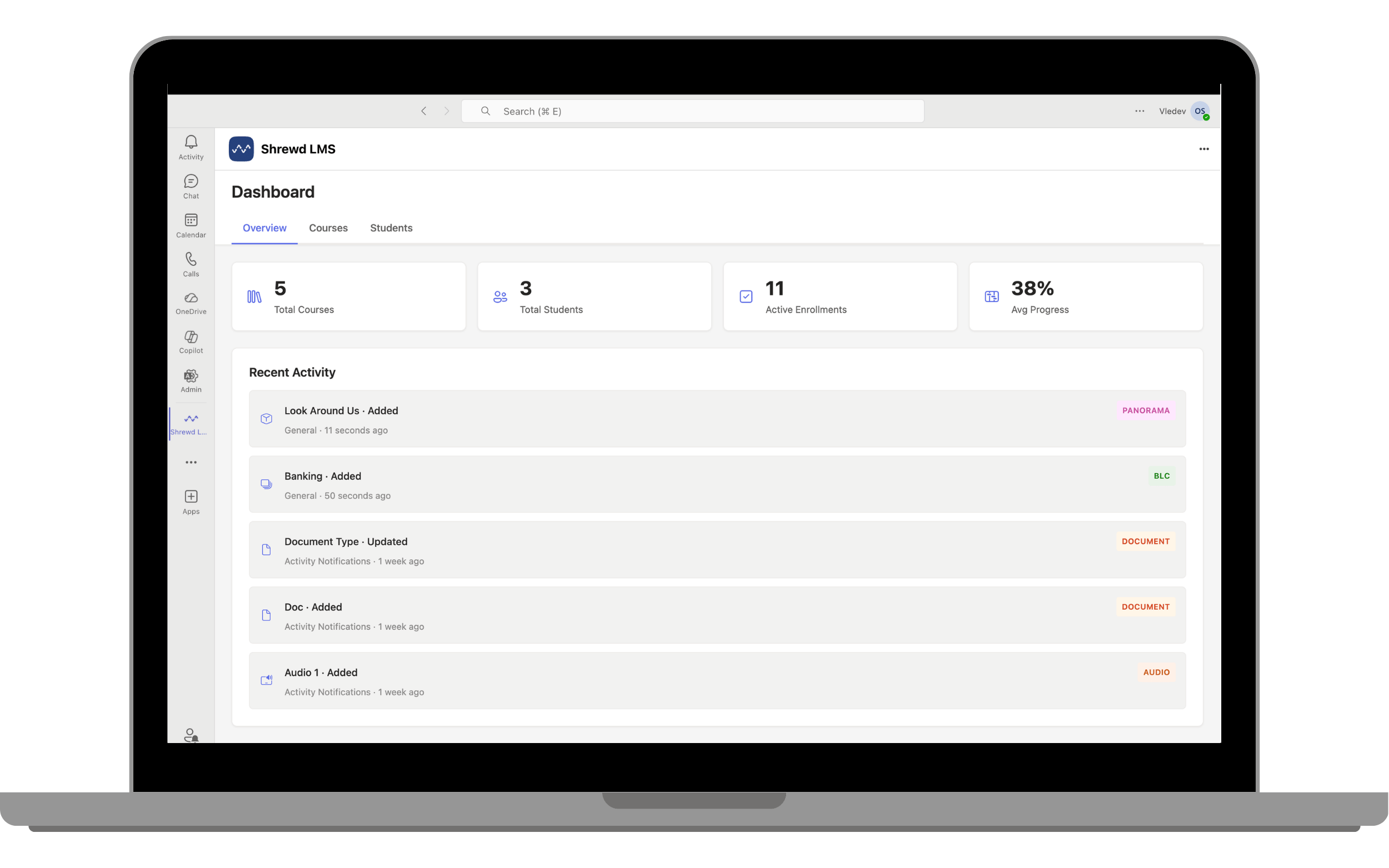
Open Shrewd LMS from the Teams sidebar. The Global Report Dashboard loads automatically
Open Microsoft Teams
Open Microsoft Teams on your desktop or browser.
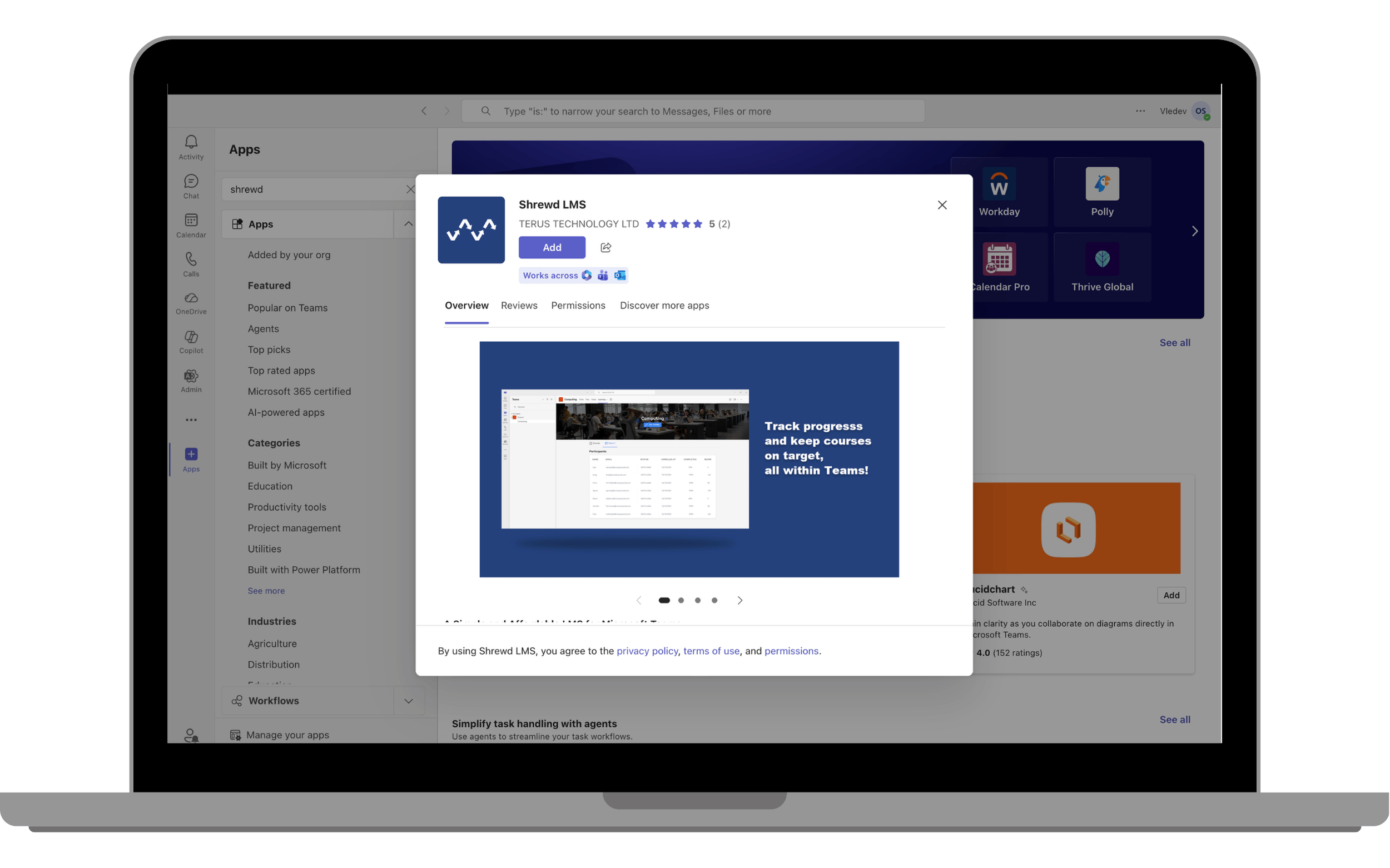
Search and add the app
In the left-hand menu, click Apps. Search for Shrewd LMS. Select the app and click Add.
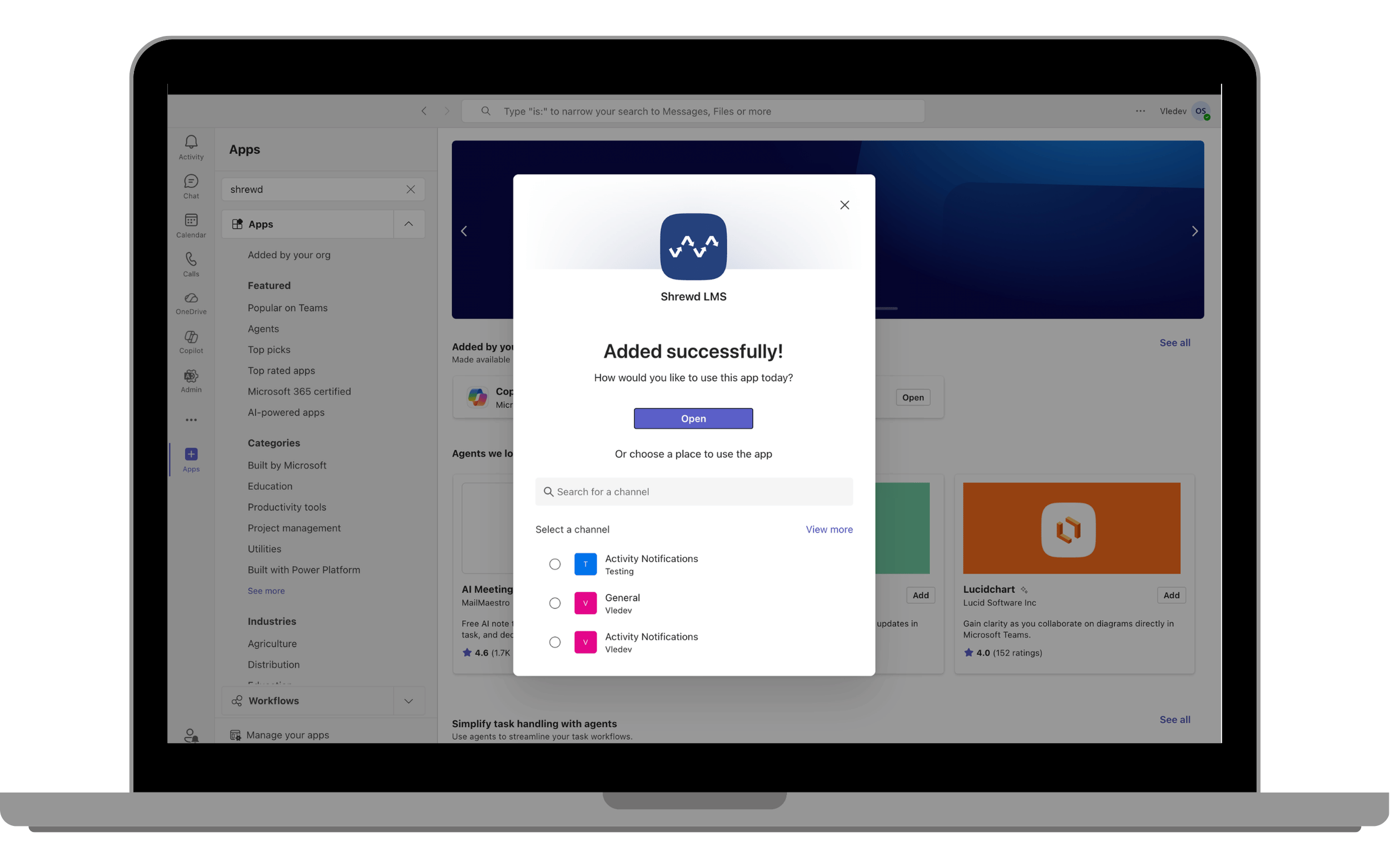
Open Shrewd LMS
Open Shrewd LMS to see the global dashboard.
Tip: Pin the app to your sidebar for quicker access.
Via Microsoft 365
Access Shrewd LMS through the Microsoft 365 app launcher without opening Teams.
Access via Microsoft 365
- Go to https://www.office.com or https://m365.cloud.microsoft
- Sign in with your work account
- Click Apps, then expand app list
- Select Shrewd LMS to open Global Report
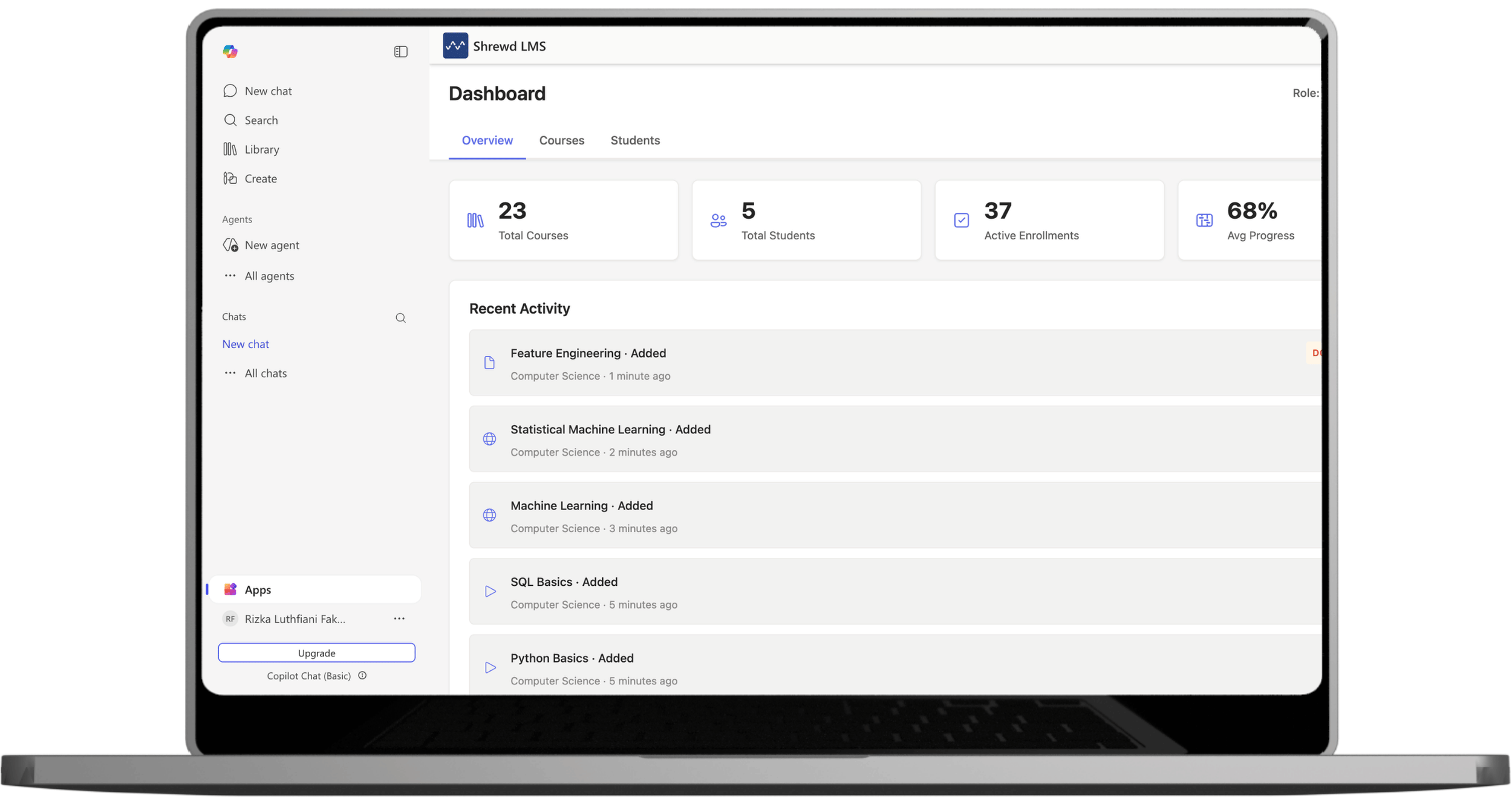
Via Outlook
Access Shrewd LMS from the Outlook web or desktop app.
Access via Outlook
- Open Outlook (web or desktop)
- Sign in with your work account
- Click More apps from the left sidebar
- Search for Shrewd LMS or select it from the list
- The Global Report dashboard will open
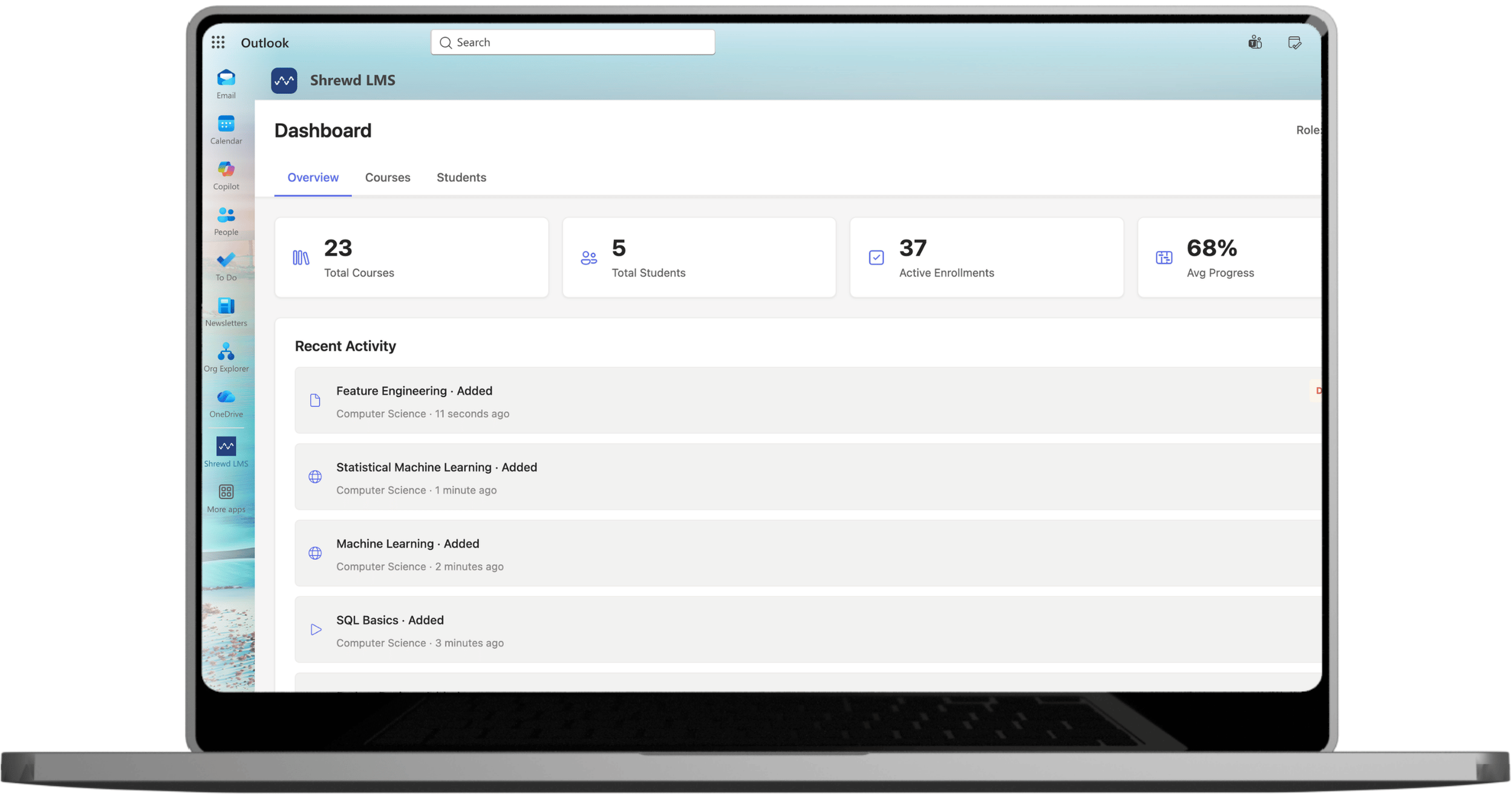
Courses Tab
View all courses in your organisation with status, owner, participant count, and dates.
Courses Tab
The Courses tab displays all courses within your organisation, including their status, owner, participant count, and course dates. You can quickly browse available courses or search for a specific course using the search bar and status filter.
Click Manage on any course to open its management page.
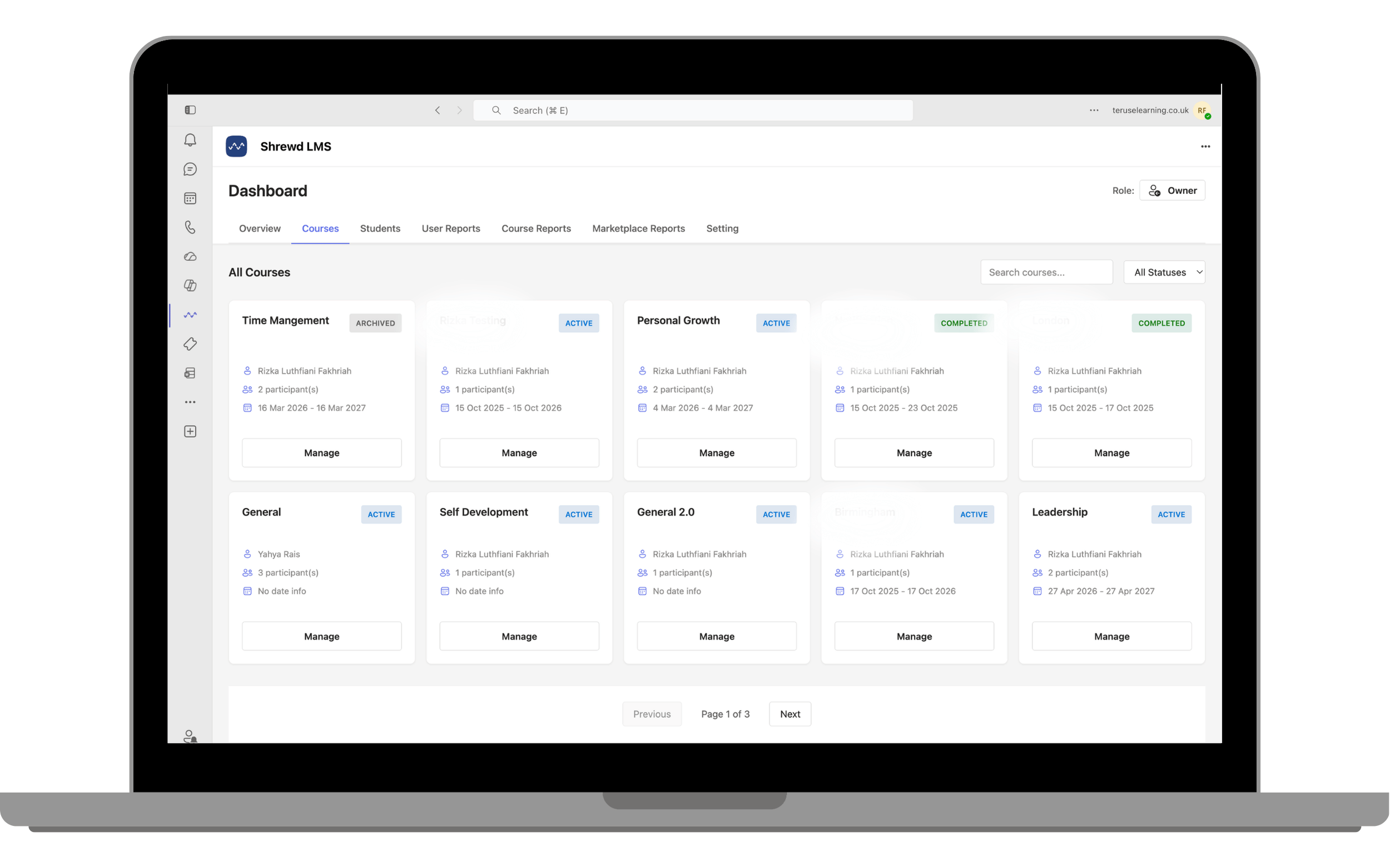
Students Tab
Browse all learners with email, enrolled courses, and average progress.
Students Tab
The Students tab displays all learners enrolled across your organisation, along with their email address, the number of courses they are enrolled in, and their average course progress. Use the search bar to quickly find a specific learner.
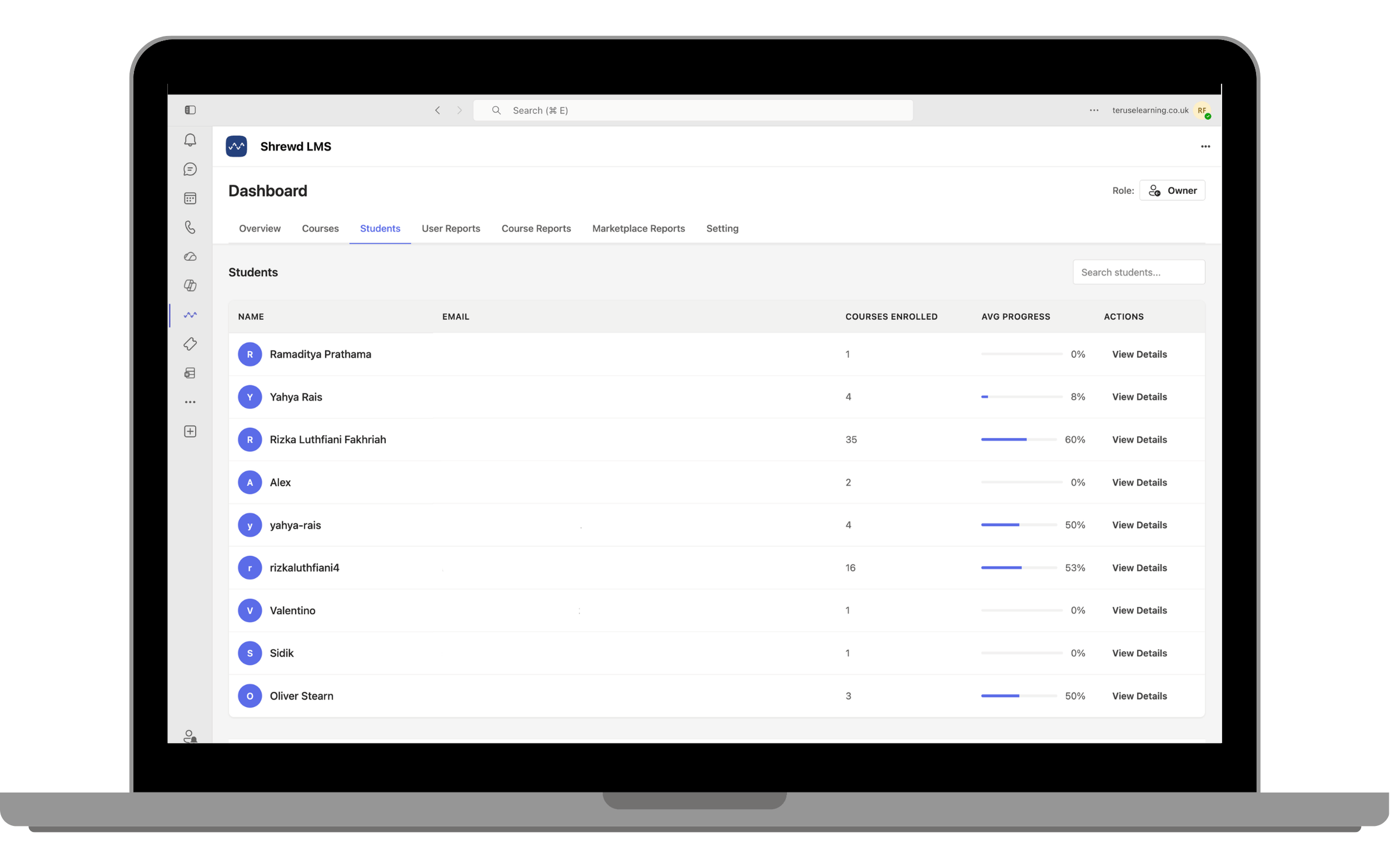
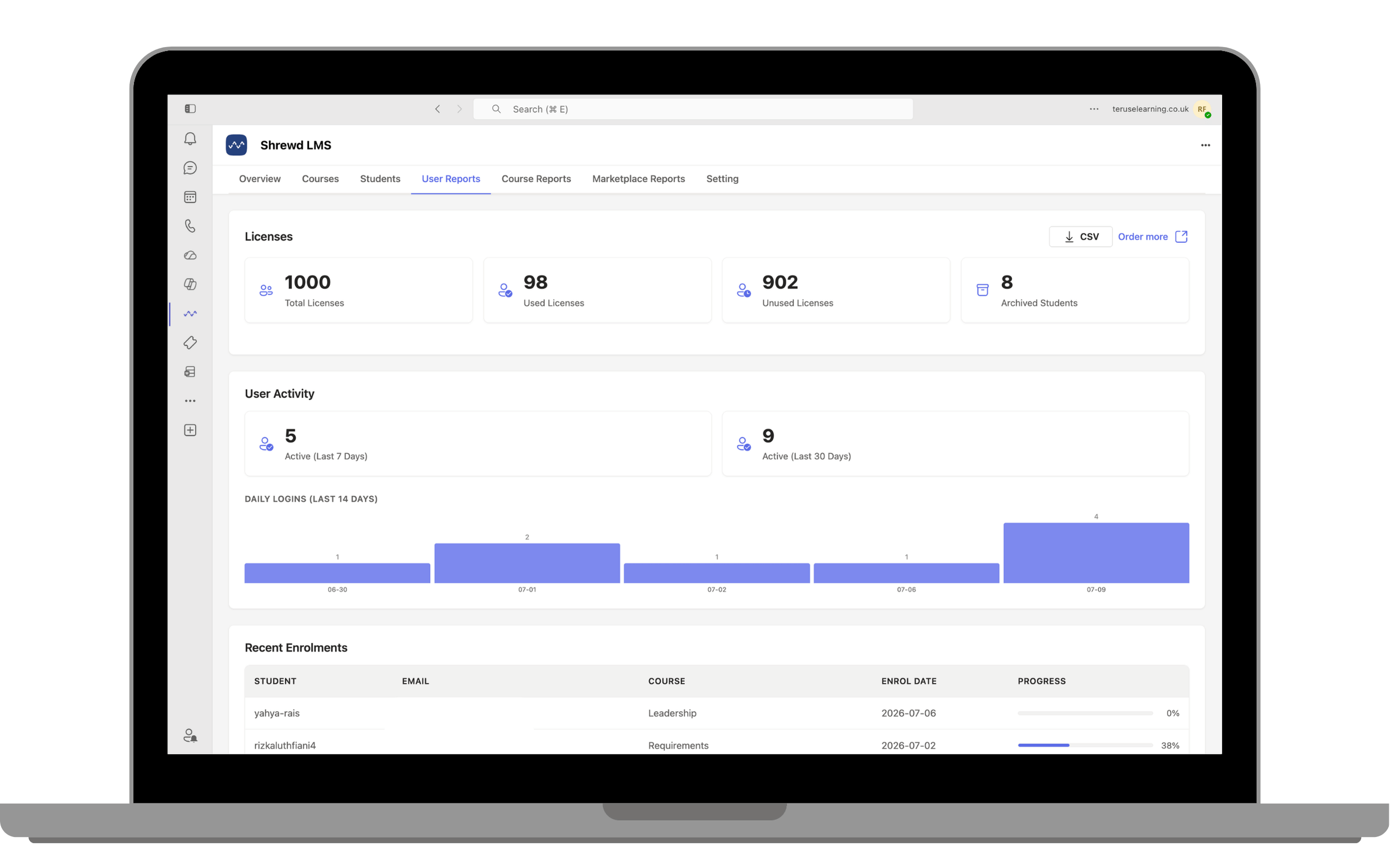
User Reports
Overview of user activity: licence usage, active learners, daily login trends, and recent enrolments. CSV export available.
User Reports Tab
The User Reports tab provides an overview of user activity across your organisation, including licence usage, active learners, daily login trends, and recent enrolments. You can also export the report as a CSV file.
Note: This tab is only available to users assigned the Course Manager role.
Course Reports
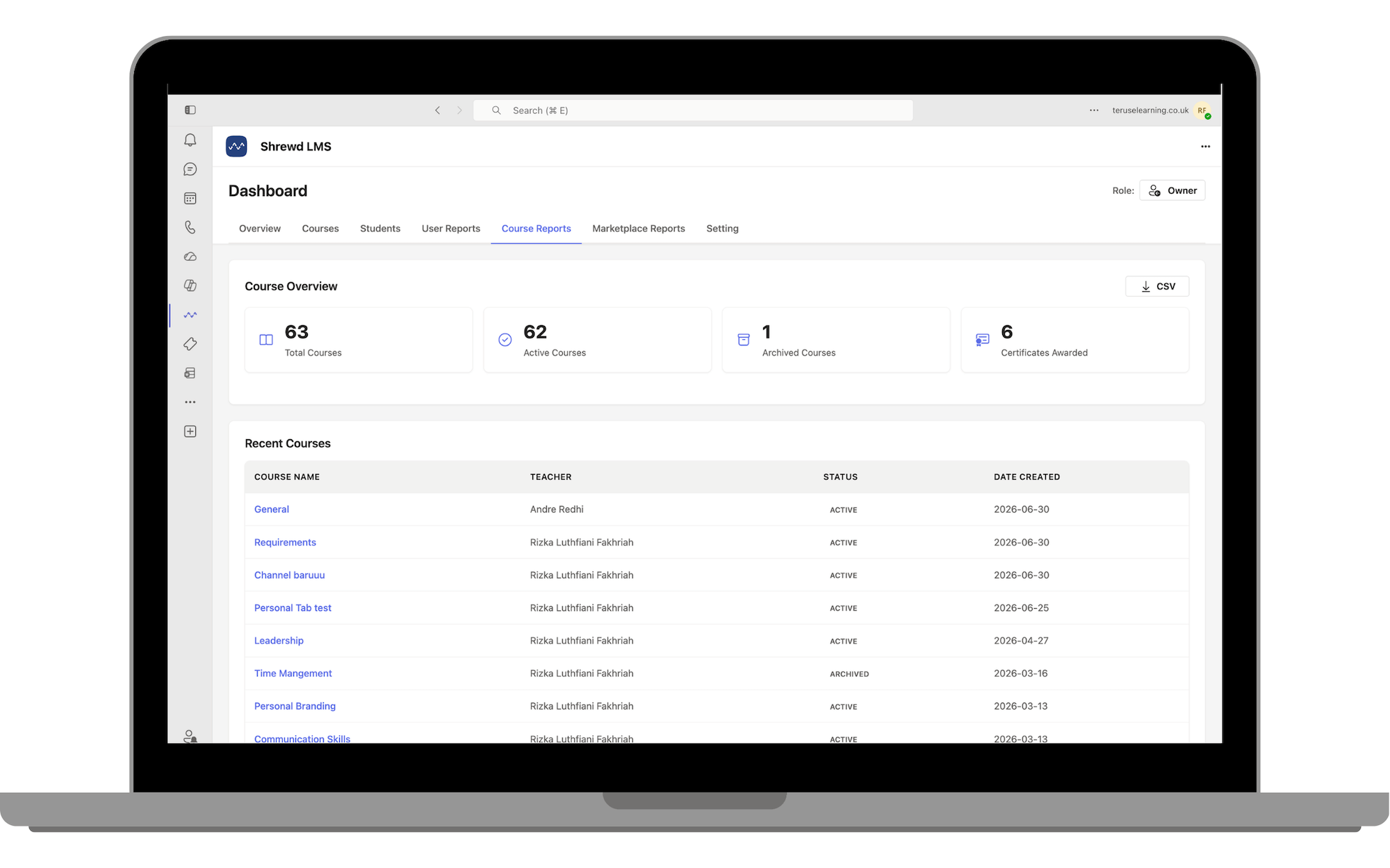
Overview of all courses: total courses, active/archived, certificates awarded. CSV export available.
Course Reports Tab
The Course Reports tab provides an overview of all courses in your organisation, including the total number of courses, active and archived courses, and certificates awarded. You can also export the report as a CSV file.
Review the list of recent courses to view key information, such as the course name, teacher, status, and creation date.
Settings
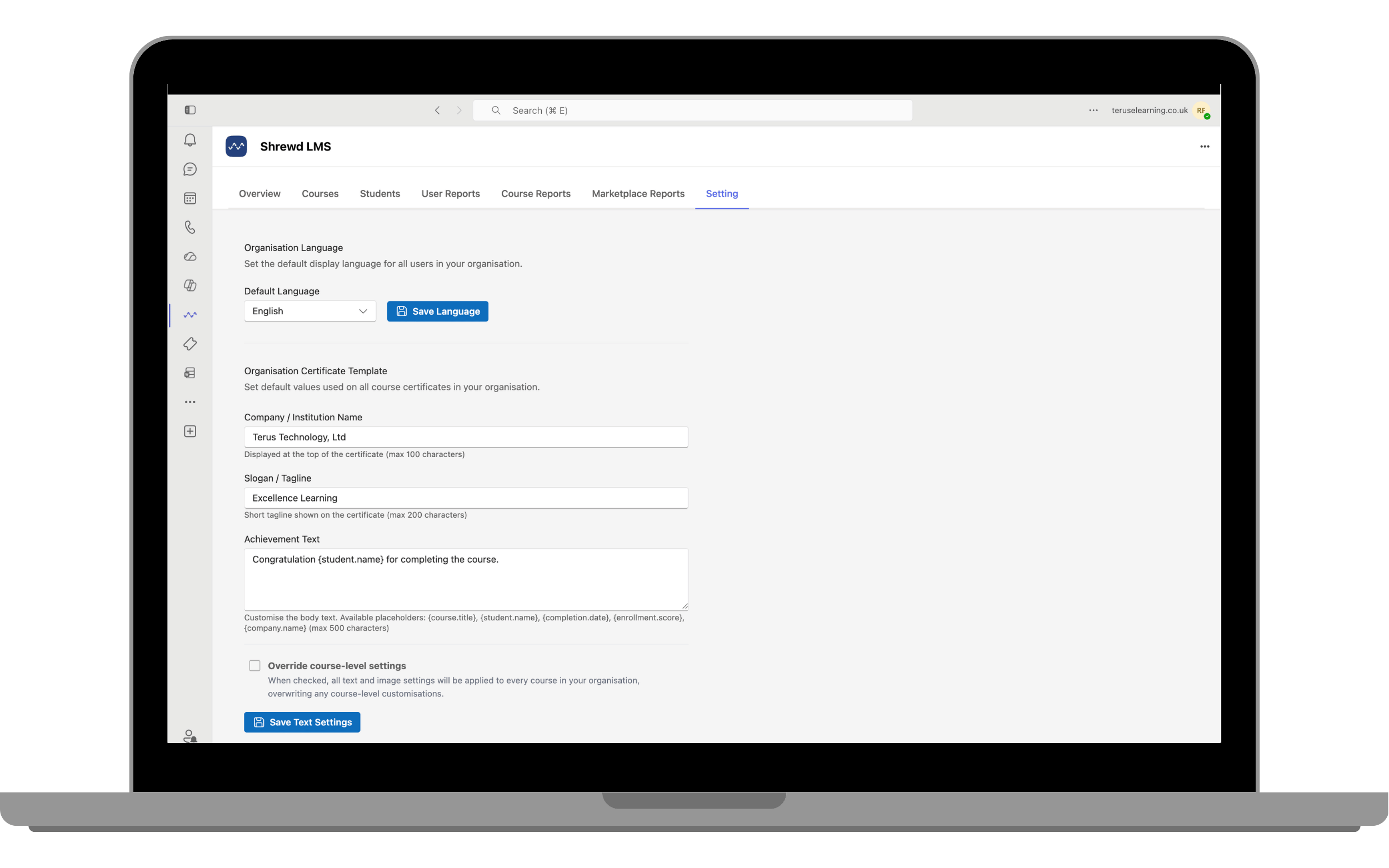
Configure organisation-wide preferences: default language and certificate template.
Settings Tab
The Settings tab allows you to configure organisation-wide preferences, including the default display language and certificate template settings.
Customise your certificate template by entering your organisation name, slogan, and achievement text. Course owners can also customise certificate settings for the courses they own from the course settings.