
How to Use Shrewd LMS as Admin
Comprehensive guide for administrators setting up and managing Shrewd LMS within Microsoft Teams.
Important Note: Shrewd LMS works natively within Microsoft Teams and does not require configuration via Azure Active Directory (Azure AD). We strongly recommend not using Azure AD groups or custom restrictions to control access, as this may cause unexpected access issues. Manage access using Microsoft Teams settings and policies only. The same Shrewd LMS app cannot be added twice in the same Team or Chat scope.
Notification Settings
Configure when users receive course notifications
This feature allows admins to configure when notifications are sent to users regarding course activities.
Initial Setup
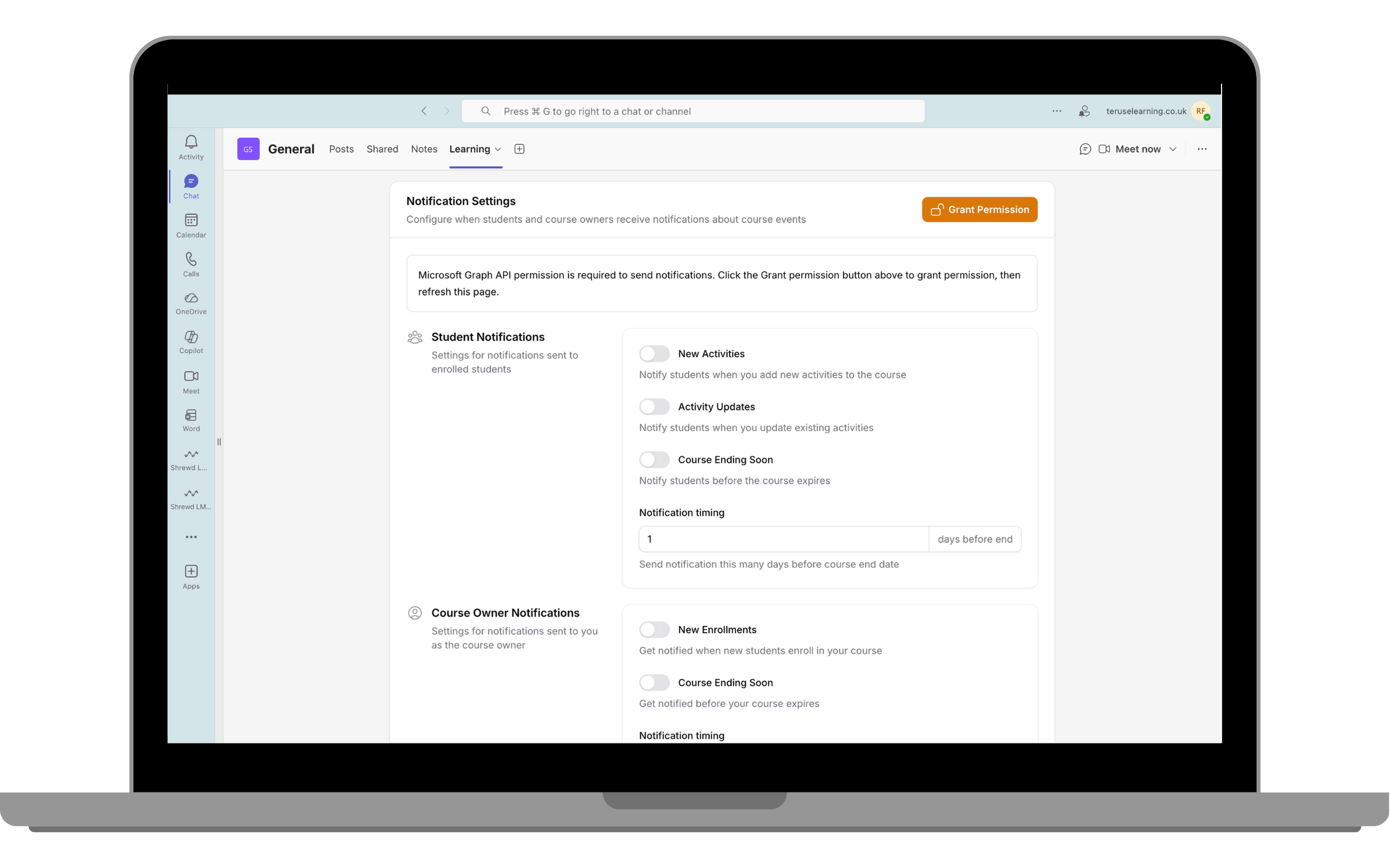
Ensure the Grant Permission button is no longer visible.
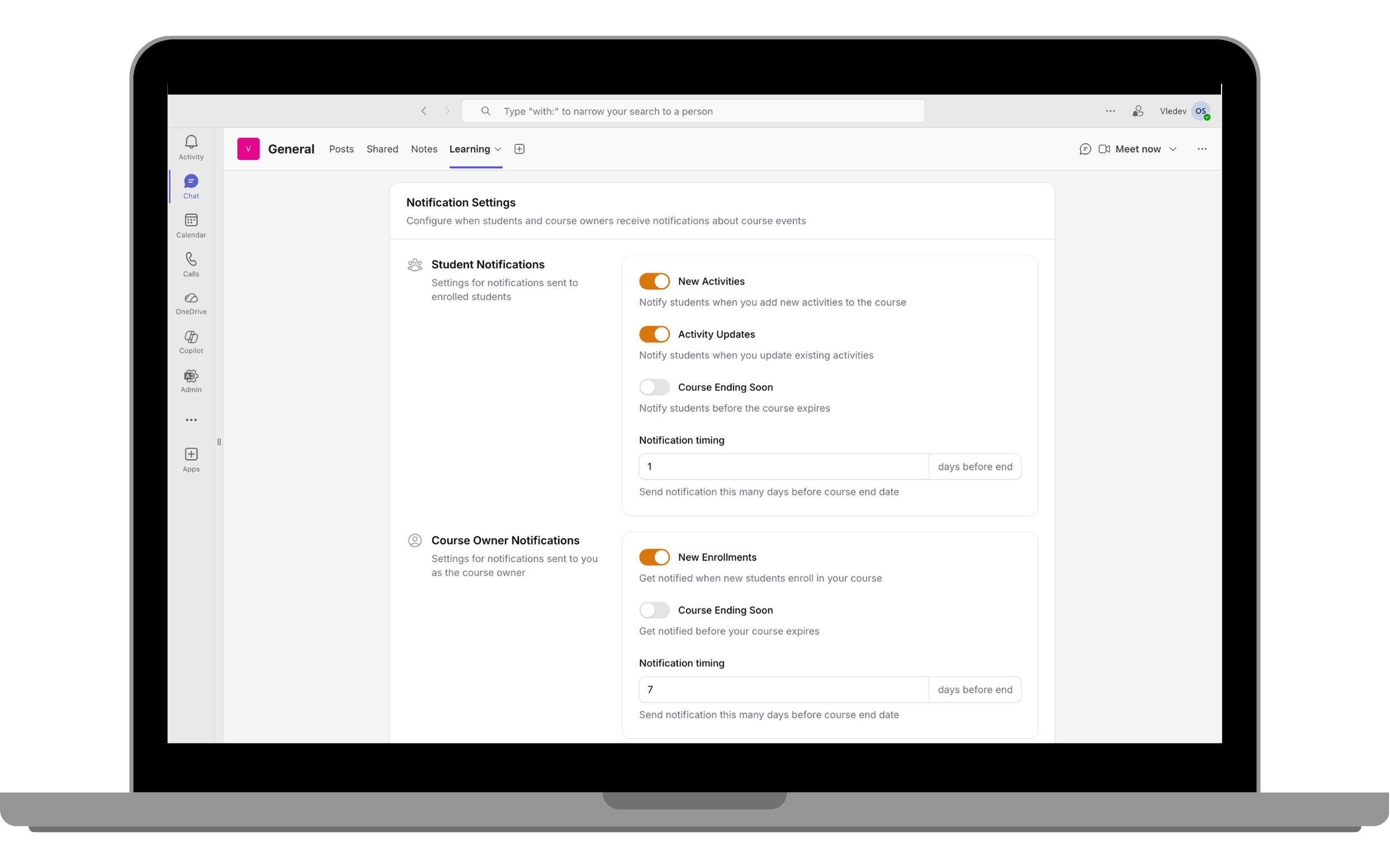
Reload the app.
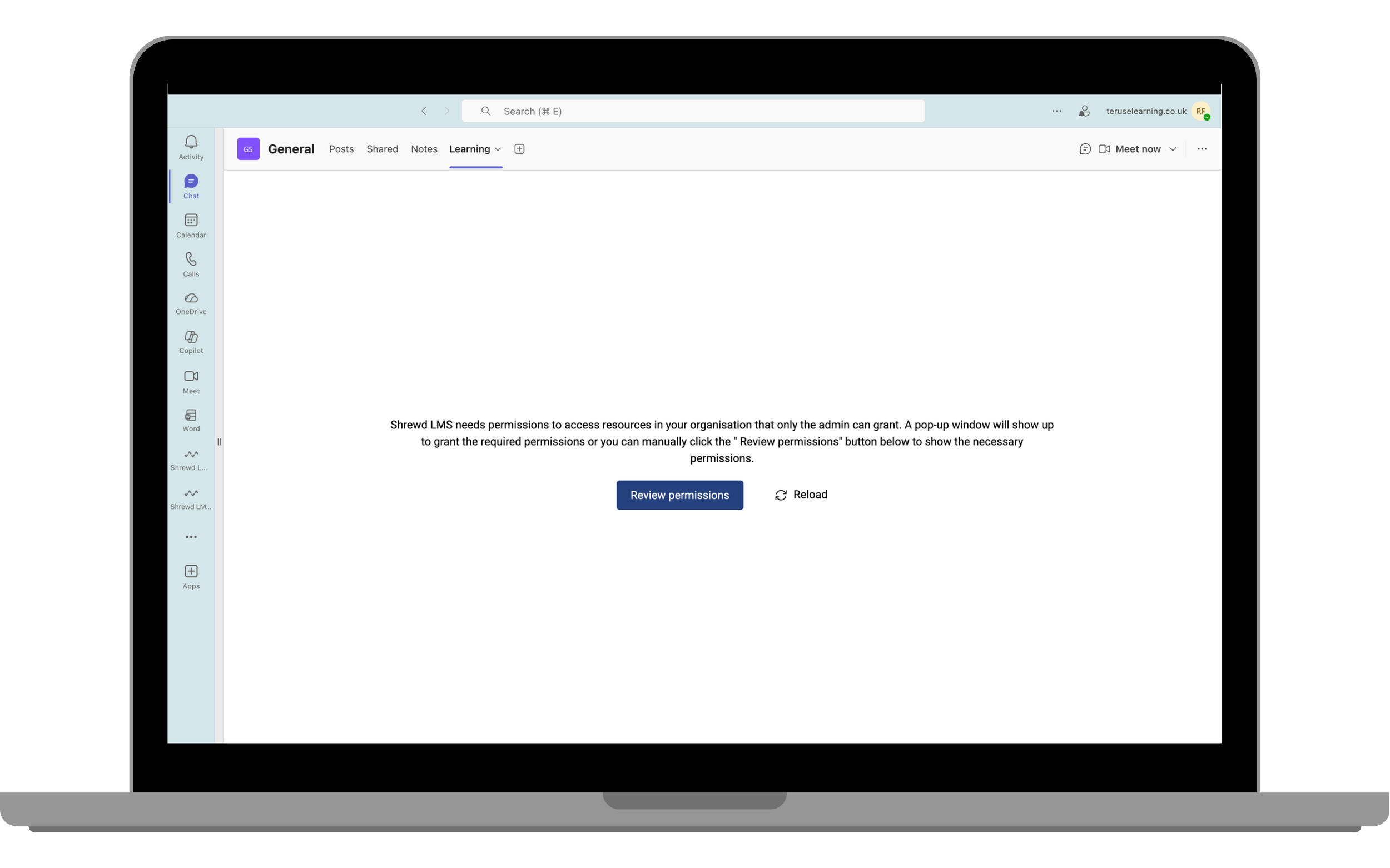
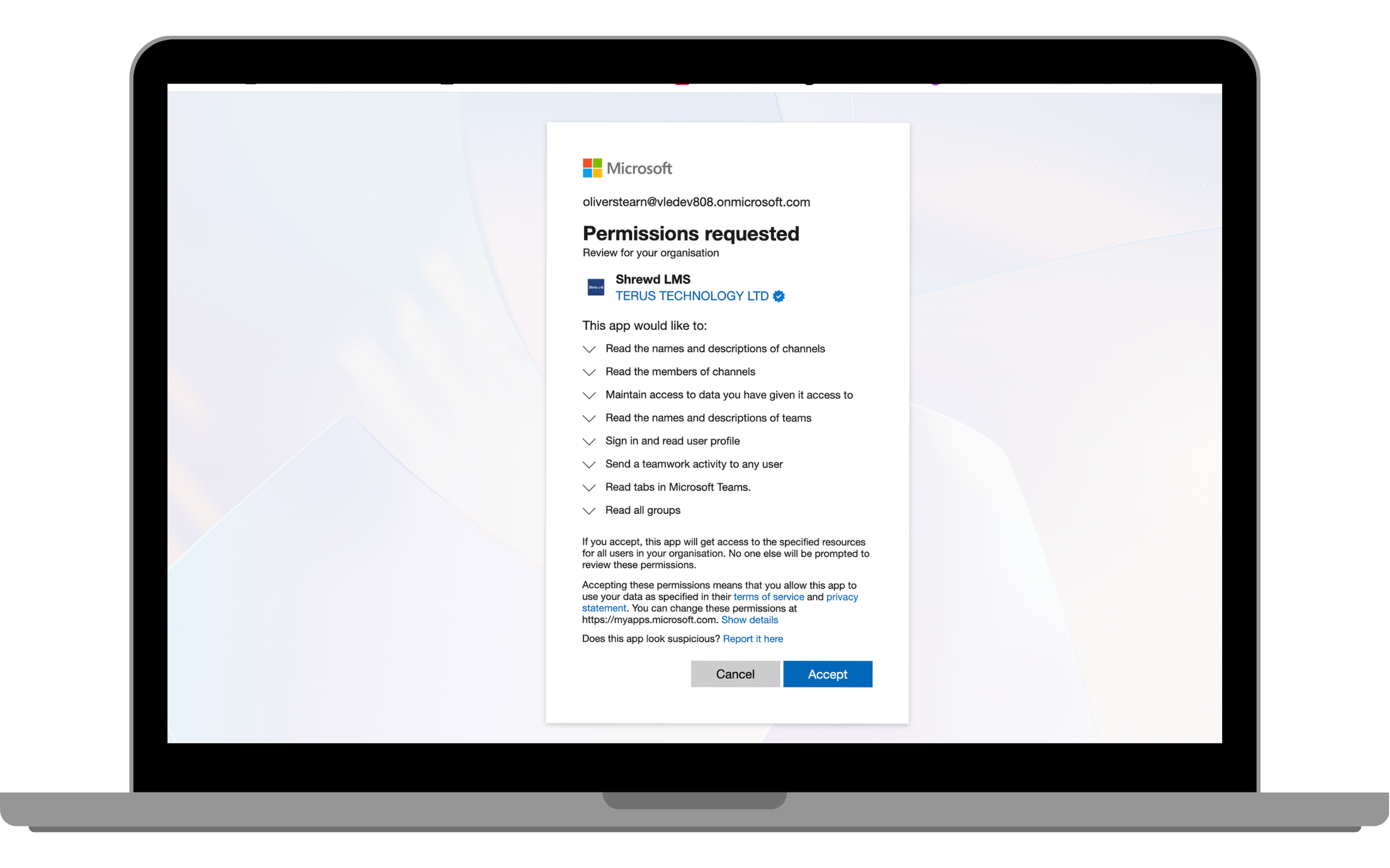
Complete the Microsoft permission approval (admin required).
Click Grant Permission.
After Setup
Once permissions are granted, admins and course owners can enable the following notifications:
Student Notifications:
- New Activities: Notify students when new activities are added to the course. (Triggered only if the student has completed all activities and a new one is added)
- Activity Updates: Notify students when existing activities are updated. (Triggered only if the student has already completed the activity being edited)
- Course Ending Soon: Notify students before the course expires. You can customise how many days in advance.
Course Owner Notifications:
- New Enrollments: Get notified when new students enroll in your course.
- Course Ending Soon: Get notified before your course expires.