How to Use Shrewd LMS as Admin
Comprehensive guide for administrators setting up and managing Shrewd LMS within Microsoft Teams.
Important Note: Shrewd LMS works natively within Microsoft Teams and does not require configuration via Azure Active Directory (Azure AD). We strongly recommend not using Azure AD groups or custom restrictions to control access, as this may cause unexpected access issues. Manage access using Microsoft Teams settings and policies only. The same Shrewd LMS app cannot be added twice in the same Team or Chat scope.
Installing Shrewd LMS in Microsoft Teams
Install and launch the app
This section guides you through the process of installing Shrewd LMS within Microsoft Teams. By completing these steps, you will be able to access the app and begin setting up and managing your learning environment directly inside Teams.
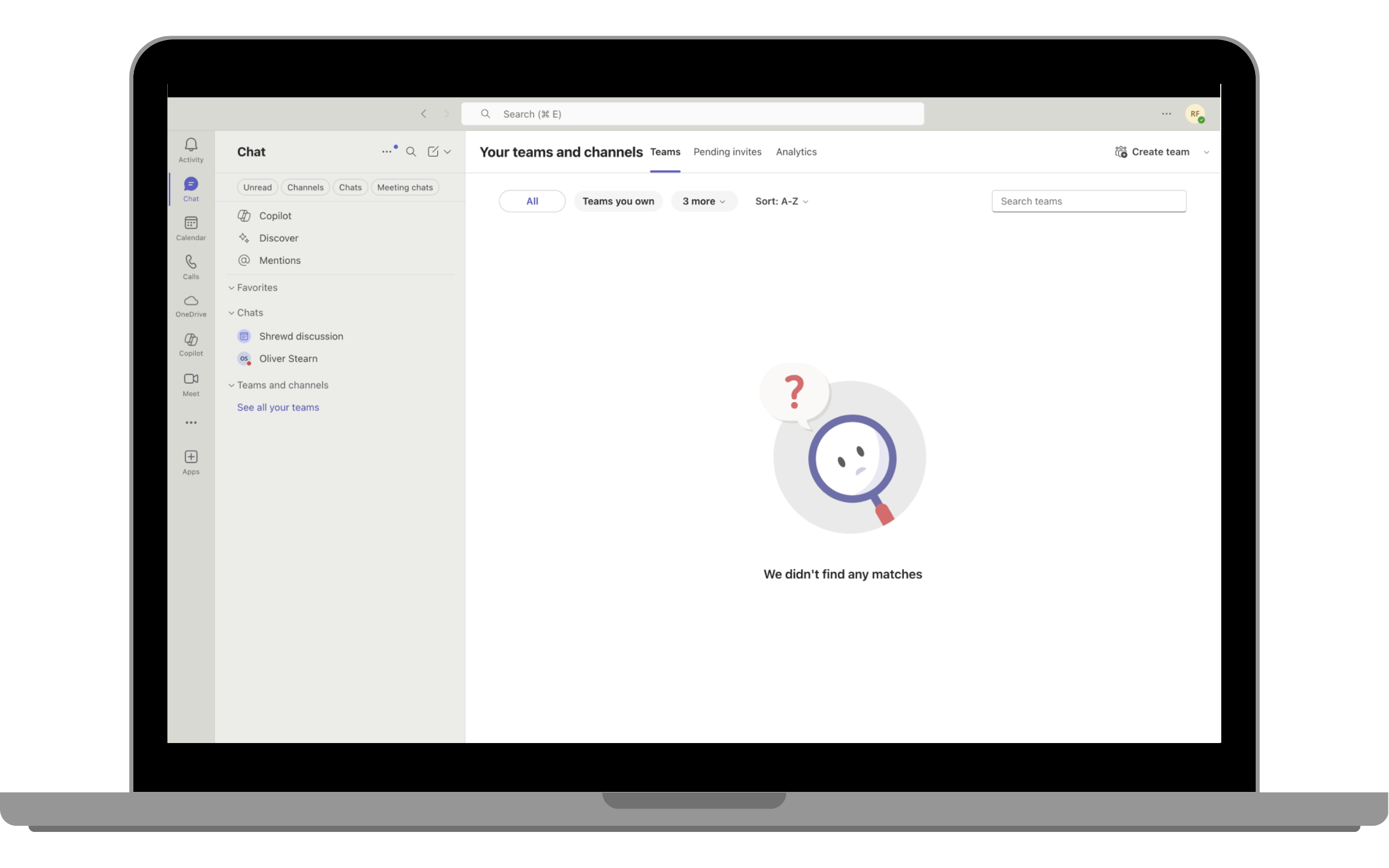
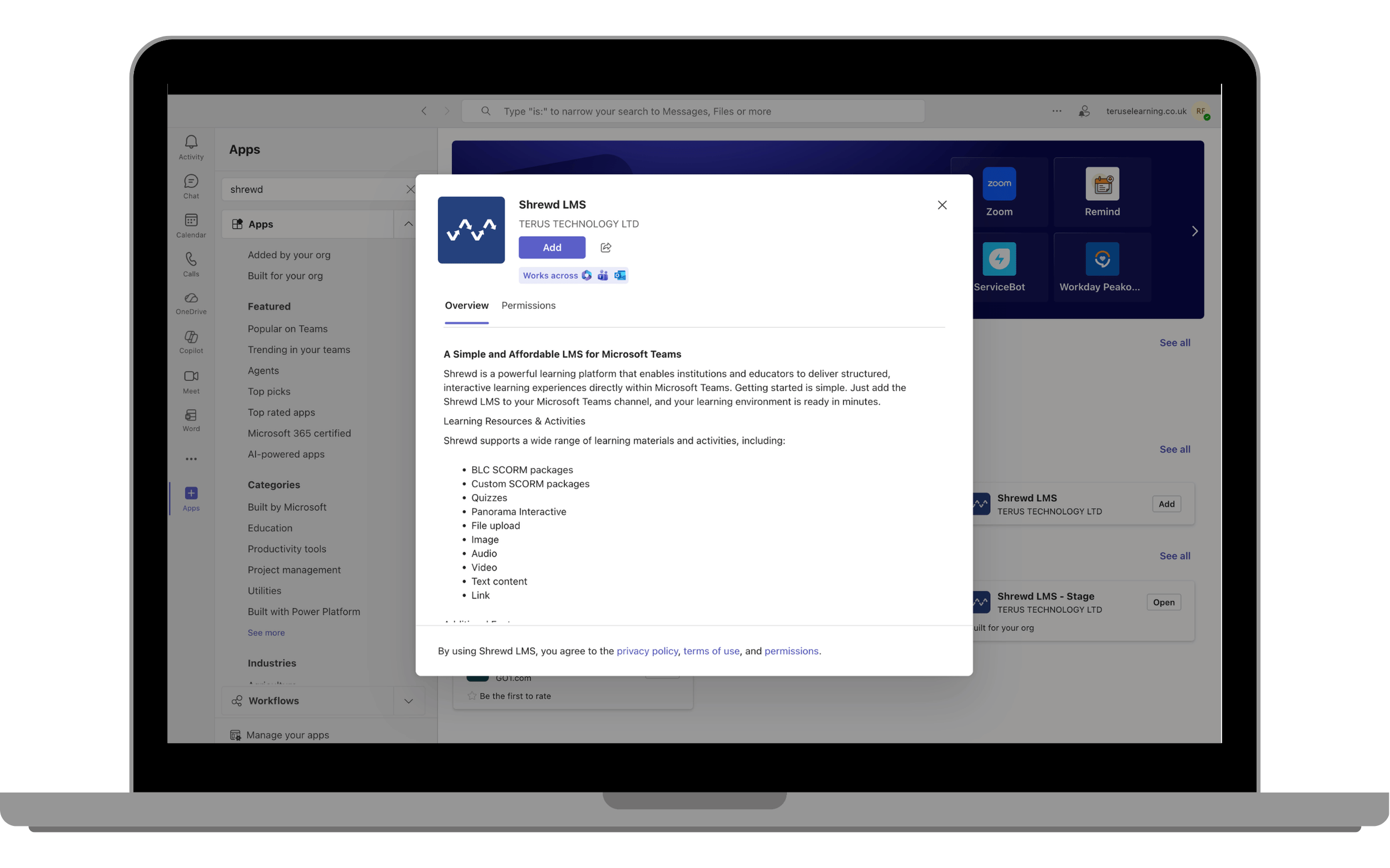
Step 2: Add the App
Click Apps on the left sidebar.
Search for Shrewd LMS.
Click Add.
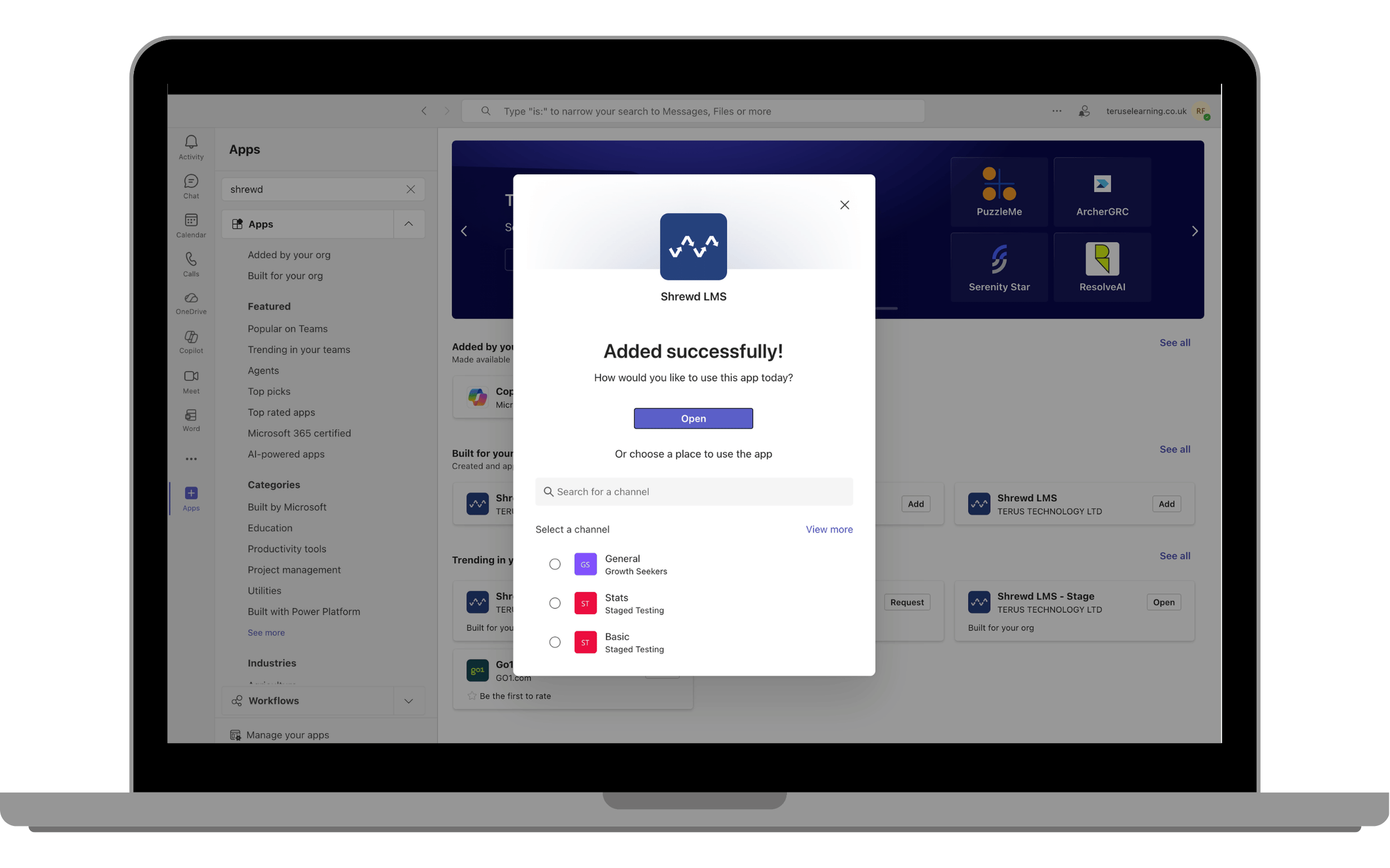
Step 3: Open the App
Click Open to launch the app.